
ControlUp bietet eine Vielzahl von Funktionen, um das digitale Erlebnis für Mitarbeiter zu verbessern, die jeden Desktop, jede Anwendung und jeden Ort nutzen.
Pulse AI analyzes real-time patterns across endpoints, apps, networks, and users. It suppresses expected activity to detect and alert only what matters.
Monitor, troubleshoot, and optimize every virtual desktop before slow sessions and app crashes interrupt your workforce.
ControlUp für DesktopsStay in control of every device. Prevent desktop issues before they disrupt employees or flood your IT queue.
ControlUp für ComplianceAutomate endpoint compliance across every device. Close security gaps and enforce policies without slowing IT down or getting in the way.
Pinpoint and fix SaaS and web app issues fast with real-time visibility across every device, browser, and network before employees feel the impact.
ControlUp Migrate für Windows 365Migrate faster with less risk. Automated workflows replace manual steps, so your move to Cloud PCs is done right.
ControlUp DaaS IQIntelligent autoscaling and cost control for Azure Virtual Desktop environments.
Smarter root cause analysis, automated remediation, and AI-powered diagnostics. Fix issues faster across every device and app.
Flickschusterei und Beseitigung von SchädenDeploy patches and remediate vulnerabilities across every endpoint, automatically and at scale. Stay secure without overwhelming IT.
Endpunktsicherheit und ComplianceSpot, prioritize, and remediate risks automatically. Keep endpoints secure and compliant without slowing desktop teams down.
Live-Remote-ManagementReal-time endpoint telemetry and silent remote remediation. See and fix issues the moment they happen, without disrupting the employee.
Proactively prevent issues and resolve tickets faster wherever hybrid workers are, whatever device they’re on.
Autonomer IT-BetriebShift IT from reactive to autonomous. Automatically detect, remediate, and prevent issues across your entire estate.
Steigern Sie die IT-EffizienzDo more with less. One platform to centralize visibility, streamline operations, and free IT to focus on what actually matters.
IT-KostenoptimierungRight-size VDI, reclaim unused licenses, and make smarter device refresh decisions backed by real usage data and performance metrics.
Entdecken Sie Inhalte, Tools und Erkenntnisse zur Vereinfachung der IT und zur Verbesserung der digitalen Mitarbeitererfahrung.
Eine globale Organisation von Technologieexperten, die den Markt für Desktop-Monitoring verändert.
ControlUp bietet eine Vielzahl von Funktionen, um das digitale Erlebnis für Mitarbeiter zu verbessern, die jeden Desktop, jede Anwendung und jeden Ort nutzen.
Pulse AI analyzes real-time patterns across endpoints, apps, networks, and users. It suppresses expected activity to detect and alert only what matters.
Monitor, troubleshoot, and optimize every virtual desktop before slow sessions and app crashes interrupt your workforce.
ControlUp für DesktopsStay in control of every device. Prevent desktop issues before they disrupt employees or flood your IT queue.
ControlUp für ComplianceAutomate endpoint compliance across every device. Close security gaps and enforce policies without slowing IT down or getting in the way.
Pinpoint and fix SaaS and web app issues fast with real-time visibility across every device, browser, and network before employees feel the impact.
ControlUp Migrate für Windows 365Migrate faster with less risk. Automated workflows replace manual steps, so your move to Cloud PCs is done right.
ControlUp DaaS IQIntelligent autoscaling and cost control for Azure Virtual Desktop environments.
Smarter root cause analysis, automated remediation, and AI-powered diagnostics. Fix issues faster across every device and app.
Flickschusterei und Beseitigung von SchädenDeploy patches and remediate vulnerabilities across every endpoint, automatically and at scale. Stay secure without overwhelming IT.
Endpunktsicherheit und ComplianceSpot, prioritize, and remediate risks automatically. Keep endpoints secure and compliant without slowing desktop teams down.
Live-Remote-ManagementReal-time endpoint telemetry and silent remote remediation. See and fix issues the moment they happen, without disrupting the employee.
Proactively prevent issues and resolve tickets faster wherever hybrid workers are, whatever device they’re on.
Autonomer IT-BetriebShift IT from reactive to autonomous. Automatically detect, remediate, and prevent issues across your entire estate.
Steigern Sie die IT-EffizienzDo more with less. One platform to centralize visibility, streamline operations, and free IT to focus on what actually matters.
IT-KostenoptimierungRight-size VDI, reclaim unused licenses, and make smarter device refresh decisions backed by real usage data and performance metrics.
Entdecken Sie Inhalte, Tools und Erkenntnisse zur Vereinfachung der IT und zur Verbesserung der digitalen Mitarbeitererfahrung.
Eine globale Organisation von Technologieexperten, die den Markt für Desktop-Monitoring verändert.
Often, issues with virtual desktops are tied to the physical location where the thin client resides. There can be a myriad of reasons for this. But, fortunately, using ControlUp’s Branch Mapping feature you can map IP addresses to the names of geographical locations, buildings, or organizational branches to make troubleshooting these issues easier. Branch Mapping takes advantage of the network discipline that organizations already have in place whereby they use subnets or ranges of IP addresses for these different locations. In this post, I will demonstrate how I used Branch Mapping to troubleshoot a networking issue.
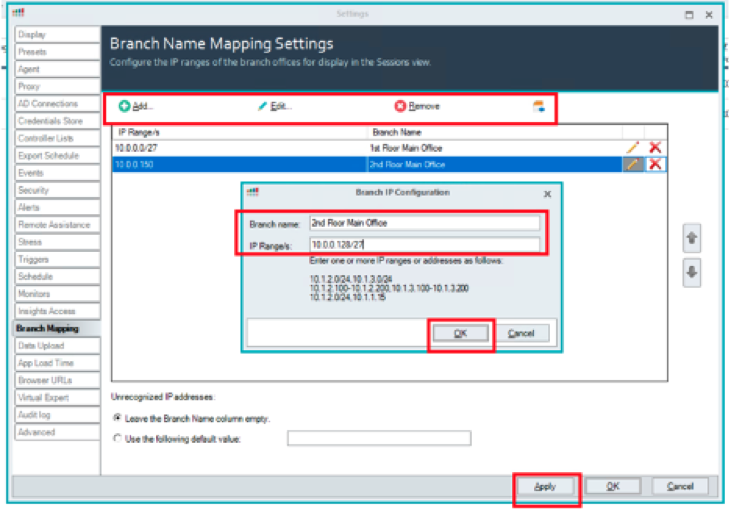
For the scenarios below, I used the ControlUp Management Console (CMC) to map the IP range from 10.0.0.0 to 10.0.0.31 (10.0.0.1/27) to the branch name of 1st Floor Main Office and the IP range of 10.0.0.128 to 10.0.0.159 (10.0.0.128/27) to the branch name of 2nd Floor Main Office.
To do this, I clicked Einstellungen in the top menu of the CMC, clicked Presets and then clicked Branch Mapping. This brought up the Branch Name Mapping Settings dialog; from here, I could add, edit, or remove branch mapping ranges. To create the branch mapping that I needed, I specified the branch name and the IP range. The IP range can be a single IP address, a CIDR range, or a beginning and ending IP address separated by “- “. After I entered the information for the two branch names that I needed using a CIDR range, I clicked OK und Bewerbung.
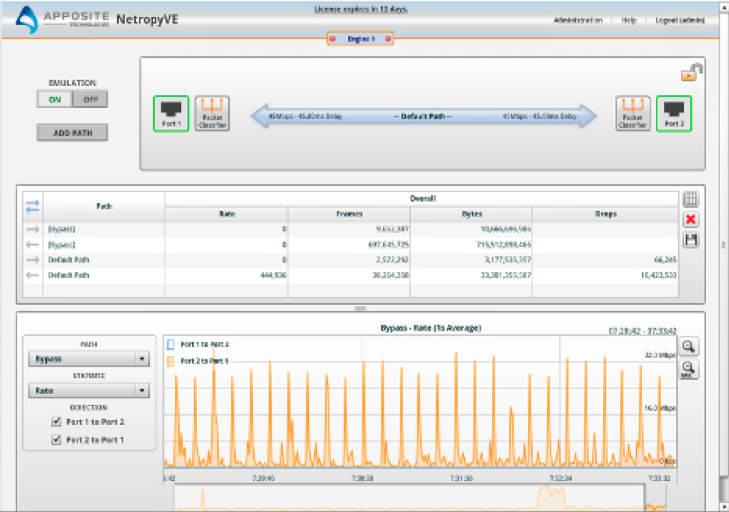
To demonstrate how Branch Mapping is used to troubleshoot an issue, I ran a test scenario using a pool of 10 VMware Horizon instant clones. I then had two VDI users on the 1st floor and two VDI users on the 2nd floor of the main office log on to their VDI clients.
For this scenario, I created a subnet with networking issues by using NetropyVE to artificially introduce 90ms latency into the network that the 2nd floor VDI clients were on.
I then used the CMC to examine the packet loss of the virtual desktops. By doing this, I could immediately verify that the users experiencing packet loss were on the 2nd floor of the main office building.
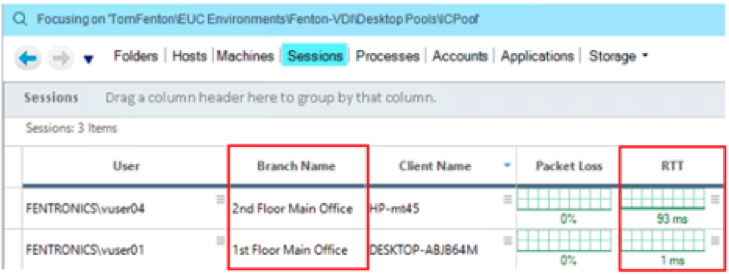
This is a trivial example, but you can easily imagine how long it would take you if you had to manually look up the location of each IP address for users that are having issues. In this case, the VDI users would have suffered with a subpar end user experience. By using the Branch Mapping feature, however, you can quickly and efficiently discover and correct issues that are affecting groups of users in a specific location.
As my quest to create a self-managing and NoOps VDI desktop environment continues, I am going to work on creating a ControlUp script that uses triggers to examine network issues to see if they are related to the Branch Name column, and then send out an alert that specifies that the issue is affecting users in a specific location. Stay tuned for an update on my efforts!