In another blog, Eldad discussed the benefits of ControlUp’s latest product, ControlUp for Compliance. I highly recommend reading that article before jumping into this one, as it will give you an overview of ControlUp for Compliance, a real-time scanning, detection, and remediation tool.
I will show you how it is used in this and subsequent blogs. In this blog, I will go over the Issues and Template dashboards.
I think managers will spend most of their time on the Issues dashboard, while technologists will spend most of their time on the Template dashboard. I will cover other dashboards in other blogs.
You launch ControlUp for Compliance from the ControlUp dashboard by clicking the ControlUp for Compliance (shield) icon in the left navigation panel.

Overview of Issues
The dashboard will start on the Issues dashboard, giving you an overview of issues you should address.
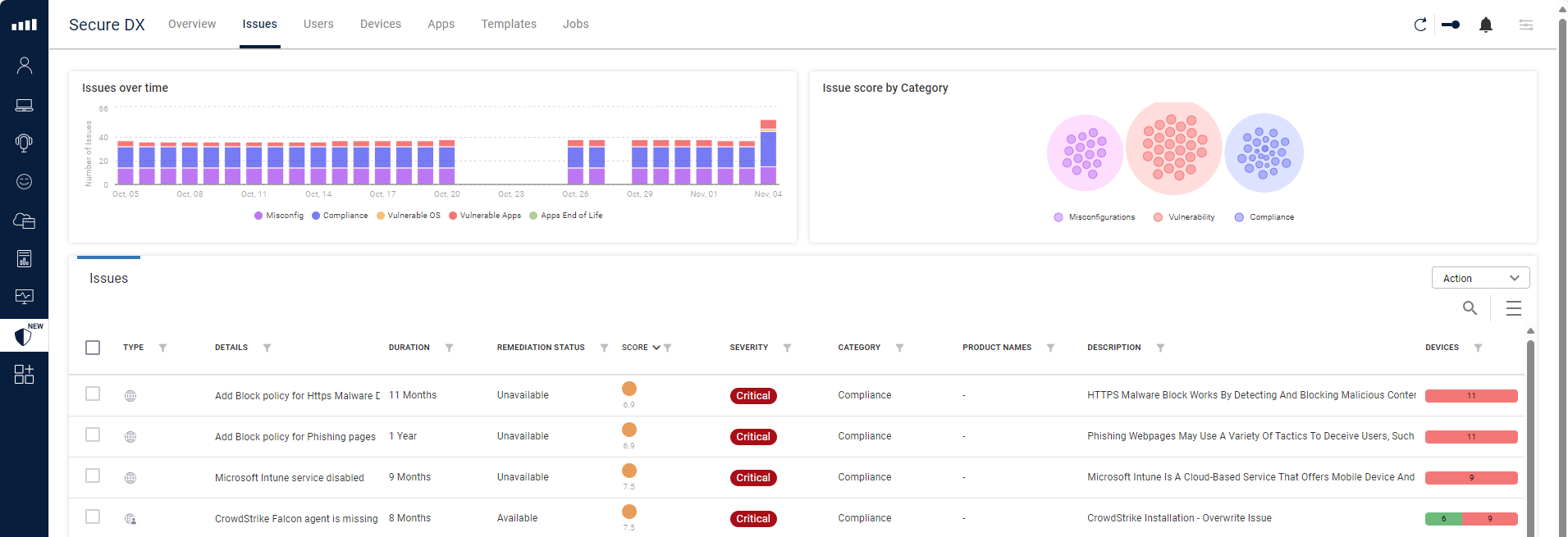
The top of this dashboard has two widgets: a graph of issues over time and the issues by category: misconfigurations, vulnerability, and compliance.
Under this is a sortable and selectable grid of the issues.
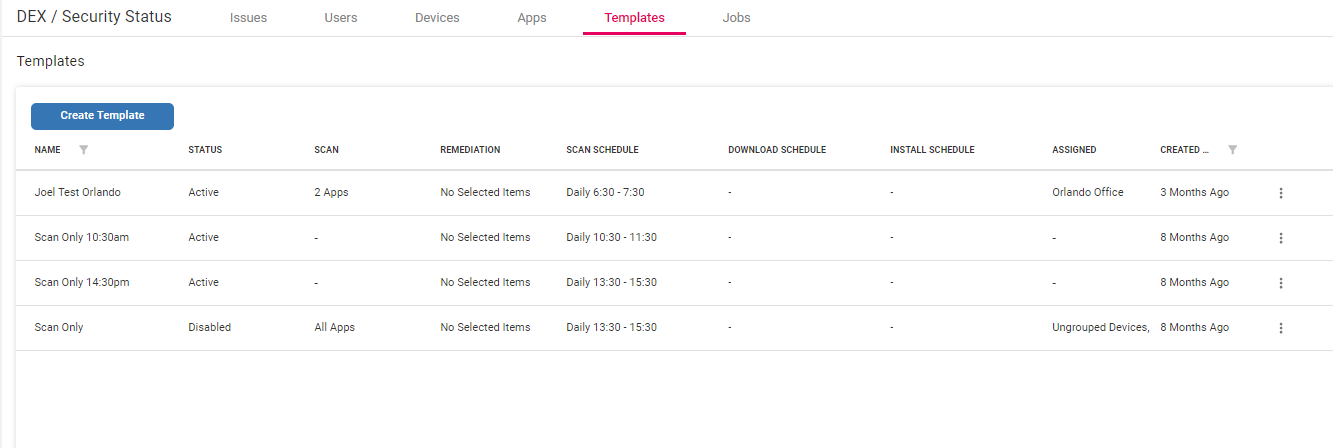
Before diving into the Issues dashboard, let’s look at the Templates tab. This tab allows us to create a set of things to check against and specify what devices to check. This workflow will enable you to schedule a scan and remediate the issues.
An Issues Checklist
I like checklists because they allow me to take specific actions. I think of ControlUp for Compliance templates as an automated checklist for issues.
I will check for all the CVEs on my environment’s Windows desktop systems for this example. Trying to do this manually would be almost impossible without a tool like ControlUp for Compliance.
To do this, click Create Template.
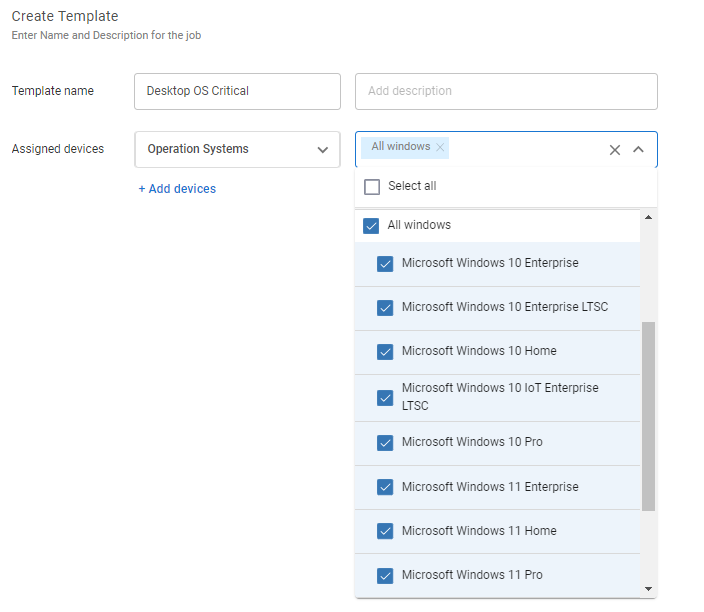
Give the new template a name (i.e., Desktop OS Critical, and choose from the drop-down menu if you want to select the devices you want to check by Device Groups, Tags, or Operating System. Device groups and tags are assigned using Edge DX. They are handy for creating device subsets by departments, lines of business, and geographical location or when doing a test rollout of new applications.
For this example, I will create a template based on the operating system and assign devices running Windows desktop OSes to it.
I clicked Next: Scanning Scope at the bottom of the dashboard.
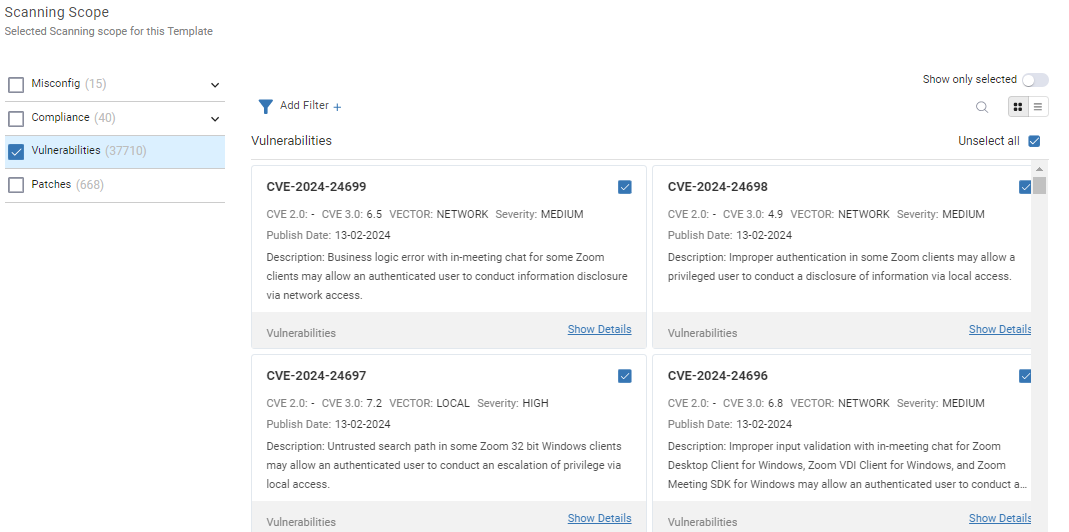
I then chose to scan for all the Vulnerabilities. These are known CVE issues that will be looked for.
I clicked Next: Remediation at the bottom of the dashboard. This allowed me to select whether I wanted auto-remediation or not.
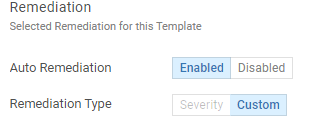
NOTE: Use caution when remediating issues, as they are very powerful.
For example, in Security Checks under Compliance, you can remove the user from the local admin group. This is a very powerful remediation, but if the device does have a user with administration rights outside of the local admin group and you remove the rights to the local admin users, you will not have a user with admin rights.
I clicked Next: Schedule at the bottom of the dashboard, which brought me to a panel that allowed me to specify when the scan and remediation take place and send a message (optional) to the users when it does.
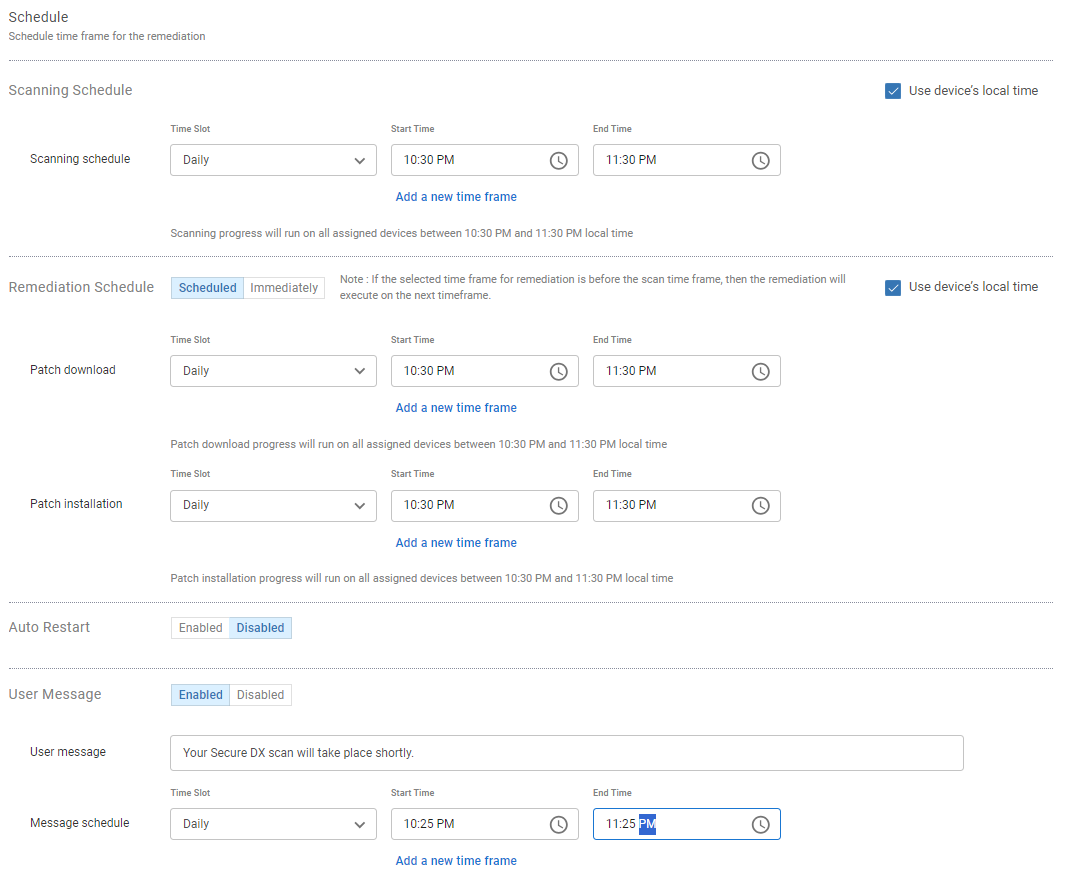
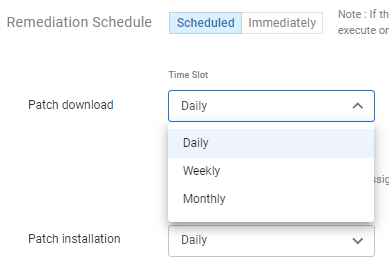
In the Time slot drop-down menu, you can specify how often you want the actions to occur.
I clicked Next: Summary at the bottom of the dashboard to verify my template, then clicked Submit to create it.
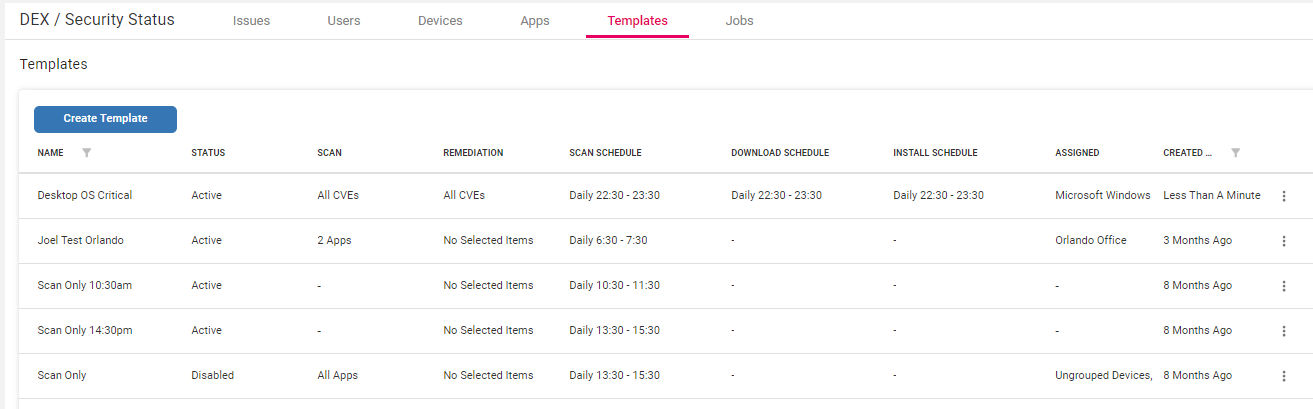
The three vertical dots to the far right in each column allow you to disable, edit, duplicate, and delete the templates.

As you can tell by this blog, ControlUp has made it extremely easy to create a template to scan and remediate issues for the devices in your company.
In my next blog, I will return to the Issues dashboard to see how it is used.
Click here for more information on ControlUp for Compliance or any of our other award-winning products or to schedule a personal demo.