As you may know, Microsoft is deprecating the Remote Desktop client for Windows and macOS on March 27, 2026. This means organizations must migrate their users to the new Windows App.
This blog explains what the Windows App is, why the migration matters, and how ControlUp makes the entire process simple and fully visible.
What are the Windows App and the Remote Desktop Client?
The Windows App is Microsoft’s modern, cross-platform client for accessing:
- Azure Virtual Desktop (AVD)
- Windows 365 Cloud PCs
- Microsoft Dev Box
- Remote Desktop Services
- Physical PCs
It runs on Windows, macOS, iOS/iPadOS, Android, Meta devices, and in any modern web browser. The idea is simple: one unified app to connect to all your remote resources.
The Remote Desktop client (formerly the default way to connect to AVD and other remote environments) has now been replaced by the Windows App. Microsoft is making this permanent by ending support for the old client on March 27, 2026.
How ControlUp Helps with Migration to Windows App
Migrating thousands of users to a new app can be challenging. ControlUp makes this process visible, measurable, and easy to manage.
With ControlUp, you can:
- Detect installation of both the Windows App and the Remote Desktop client across all Windows and macOS devices.
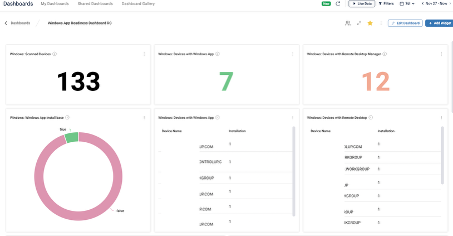
- Track migration progress using a dedicated Windows App Readiness Dashboard.
- See how many devices still use the old Remote Desktop client and how many have already migrated.
- View version details of both applications.
- Monitor usage insights, including:
- Total time spent in each application
- Daily unique users
- Top users for each app, helping you focus adoption efforts
- Use ControlUp Reports to list all devices that do not yet have the Windows App installed, making it easy to target them for deployment.
In short, ControlUp provides complete control and visibility throughout the migration.
How to Set Up in Two Simple Steps
Getting started takes less than five minutes. Just follow these two steps:
- Enable data collection
- In ControlUp for Devices, navigate to “Scripts”
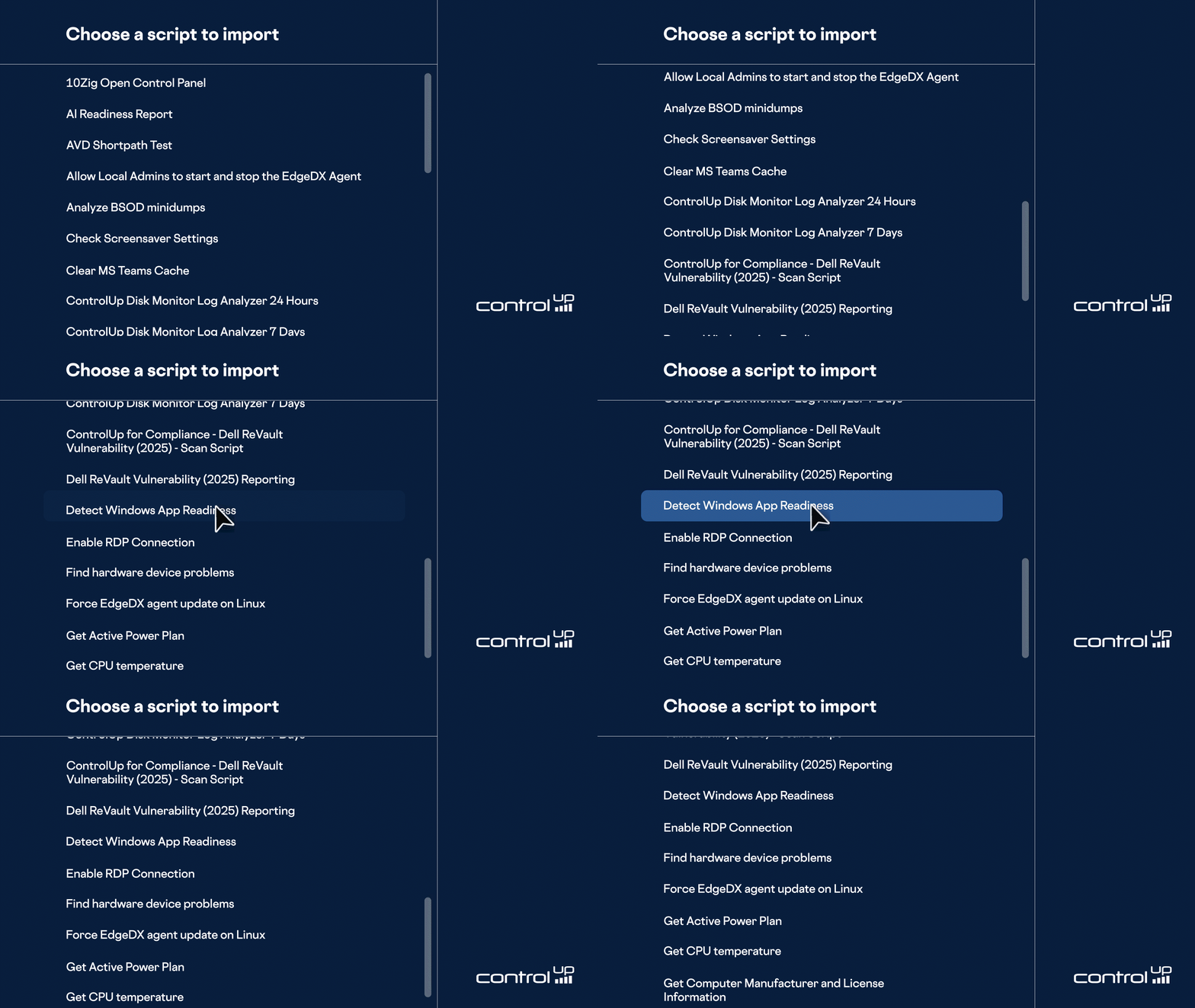
- Find the “Detect Windows App Readiness” script in the Script Library
- Click “Enable Script” and then “Import Script”
Within a few minutes, the script will begin running on your devices and collecting data.
2. View the dashboard
-
- In the Dashboard tab, open the Dashboard Gallery.
- Select “Windows App Readiness Dashboard”
That’s it — you now have real-time visibility into your organization’s migration to the Windows App.
Conclusion
We are incredibly proud of the work we have done with dashboards and how effortlessly it enables you to visualize data and gain meaningful insights. Our goal is to continue delivering powerful, easy-to-use dashboards that help you accelerate adoption, improve visibility, and add real value to your organization.
This is just the beginning — we are committed to building many more helpful dashboards for you. If you have ideas or feedback, we would love to hear from you in the ControlUp Technical Community.