
This article details a proof-of-concept demonstrating how to integrate live ControlUp environment data into Microsoft Copilot Studio, enabling natural language queries against real-time operational telemetry.
- The core solution involves a "bridge" implemented as an Azure Container App, which utilizes `supergateway` to translate ControlUp's stdio-based Model Context Protocol (MCP) server output into Copilot Studio's Streamable HTTP transport.
- Integration requires meticulous configuration of an Azure Entra ID application for secure authentication (Easy Auth and service principal), a Power Platform custom connector, and specific Copilot Studio tool settings for maker-provided credentials.
- The final outcome is a Copilot Studio agent capable of answering complex IT operational questions, such as identifying the slowest machine, by querying live ControlUp DEX data through a natural language interface.
Proof of concept. This isn’t a supported ControlUp product feature or an official integration guide — it’s a “look what you can wire together in an afternoon” walkthrough. Everything below was built and tested live in a lab tenant, including the failures. Treat it accordingly.
Here’s the idea: Microsoft Copilot Studio speaks MCP (Model Context Protocol). ControlUp ships a public MCP server (@controlup-ai/mcp) that exposes real environment data — devices, sessions, DEX scores — as MCP tools. Put a small bridge between them and you can sit in Copilot Studio and ask, in plain English:
“What’s the slowest machine in my environment?”
…and get an answer backed by live ControlUp data!
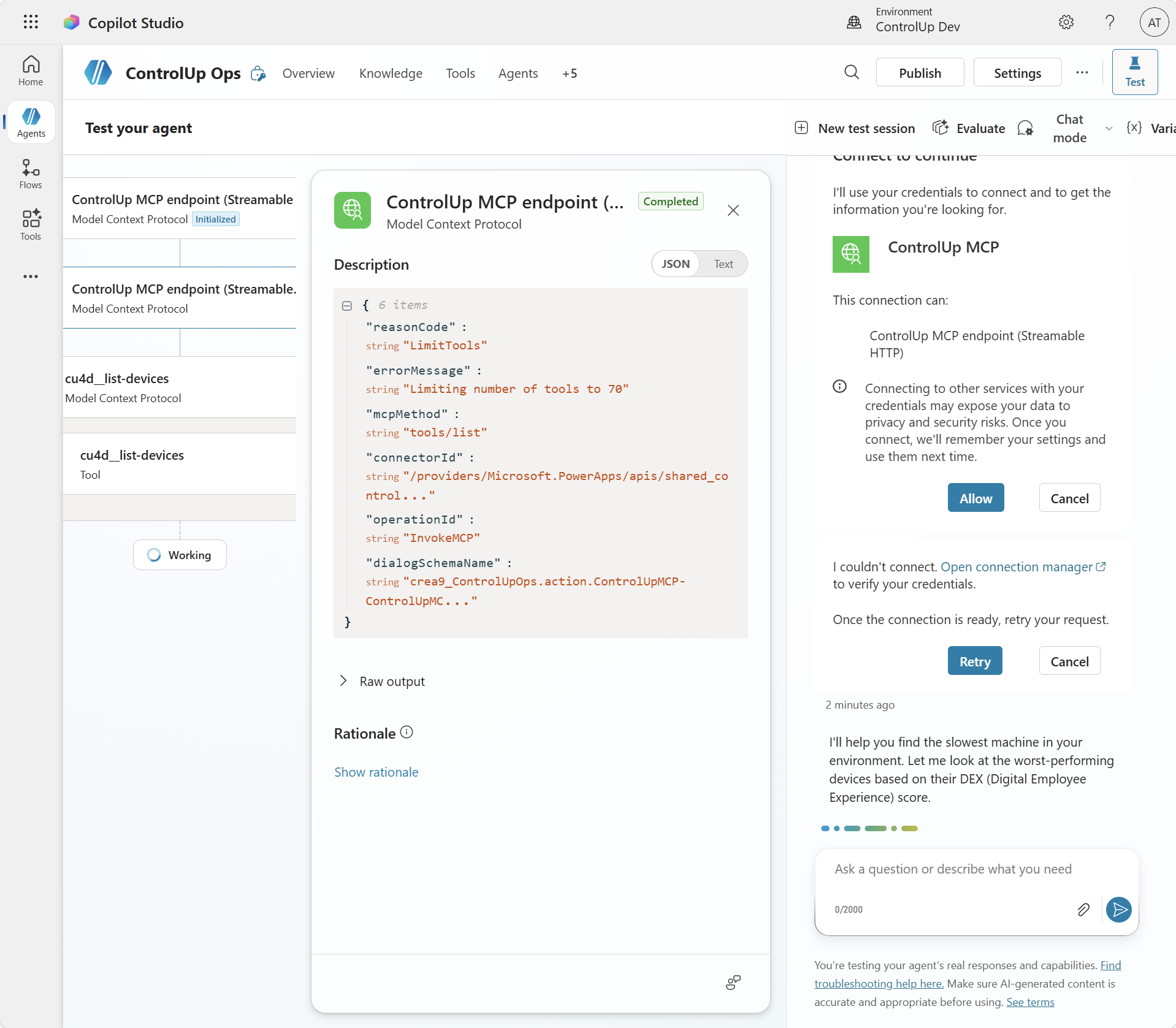
Using the data in your ControlUp environment with Copilot Studio
In this post
- How it works
- What you’ll need
- Step 1 — A ControlUp service identity and API key
- Step 2 — One Entra app: the lock and the key
- Step 3 — Deploy the bridge from Cloud Shell
- Step 4 — The Power Platform custom connector
- Step 5 — The service principal connection (and the 405 trick)
- Step 6 — Wire it into Copilot Studio
- Step 7 — Ask it something
- The gotchas we hit (read this before you rage-quit)
- Rough edges and honest caveats
- Wrap-up
How It Works
ControlUp’s MCP server is a local, stdio-based process — it’s built to be launched by a desktop client like Claude Desktop. Copilot Studio, on the other hand, wants an HTTPS endpoint speaking MCP’s Streamable HTTP transport. So the core of this POC is a tiny bridge: a container that runs the ControlUp MCP server and fronts it with supergateway, which converts stdio ⇄ Streamable HTTP.
Copilot Studio agent
   │  uses one application (service principal) connection
   ▼
Power Platform custom connector
   │  presents an app-only Entra token
   ▼
Azure Container App  ── "Easy Auth" validates the token, else 401
   │
   ▼
supergateway (stdio → Streamable HTTP)
   ▼
ControlUp MCP server (@controlup-ai/mcp)
   ▼
ControlUp APIs
There are two security layers, and keeping them straight makes every error message later make sense:
- Easy Auth is the lock. The Azure Container App’s built-in authentication checks every incoming request for a valid Entra token issued for our app. No token, wrong audience, wrong tenant → 401, and the request never reaches the bridge.
- The application credentials are the key. The Power Platform connector authenticates as the app itself (client ID + secret, the OAuth client-credentials flow).
One Entra app registration plays both roles: it’s the API being protected and the client calling it.
What You’ll Need
- A ControlUp environment and an account that can create a service user and generate an API key
- An Azure subscription (everything runs from Cloud Shell)
- Rights to create an Entra app registration and grant admin consent
- Power Platform environment access (custom connectors) and Copilot Studio
- Two small files: a Bicep template and a
deploy.shhelper (download them here)
Step 1 — A ControlUp Service Identity and API Key
Create a dedicated user, this will allow you to set a minimum role that covers the data you want the agent to read, log in as that user, and generate an API key. Record the API key and your Org ID — the bridge reads them as the API_KEY and ORG_ID environment variables.
Step 2 — One Entra App: The Lock and The Key
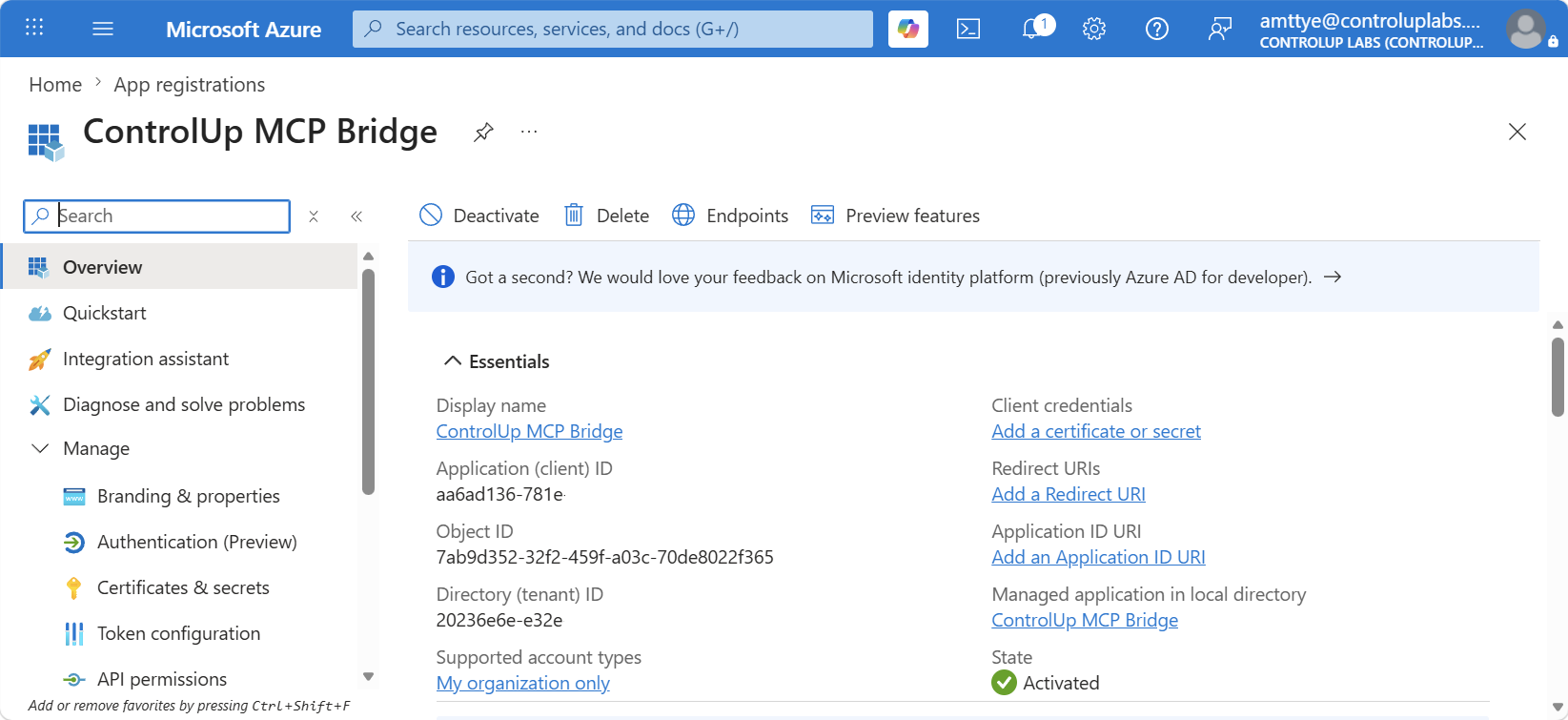
Register a single app in Microsoft Entra ID (I called mine ControlUp MCP Bridge).

From the Overview page, record the Application (client) ID and Directory (tenant) ID — you’ll paste them into three different places later.
Then four settings, each of which has a specific job:
- Application ID URI — Expose an API → set it to
api://<client-id>. This is the identifier the token audience is validated against.

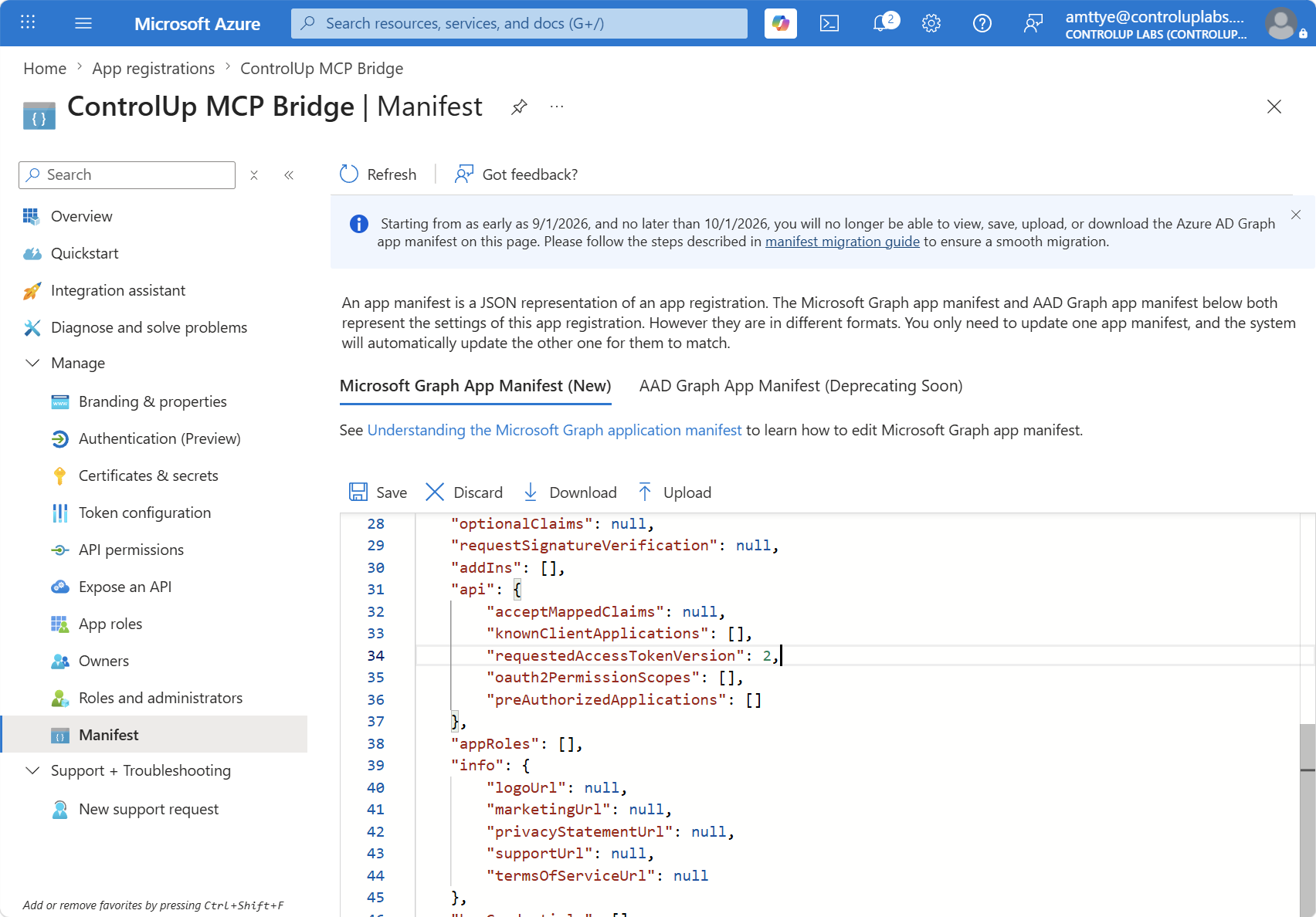
- Token version 2 — in the Manifest, set
requestedAccessTokenVersionto2. Easy Auth’s issuer validation expects v2 tokens; v1 tokens fail with confusing 401s.
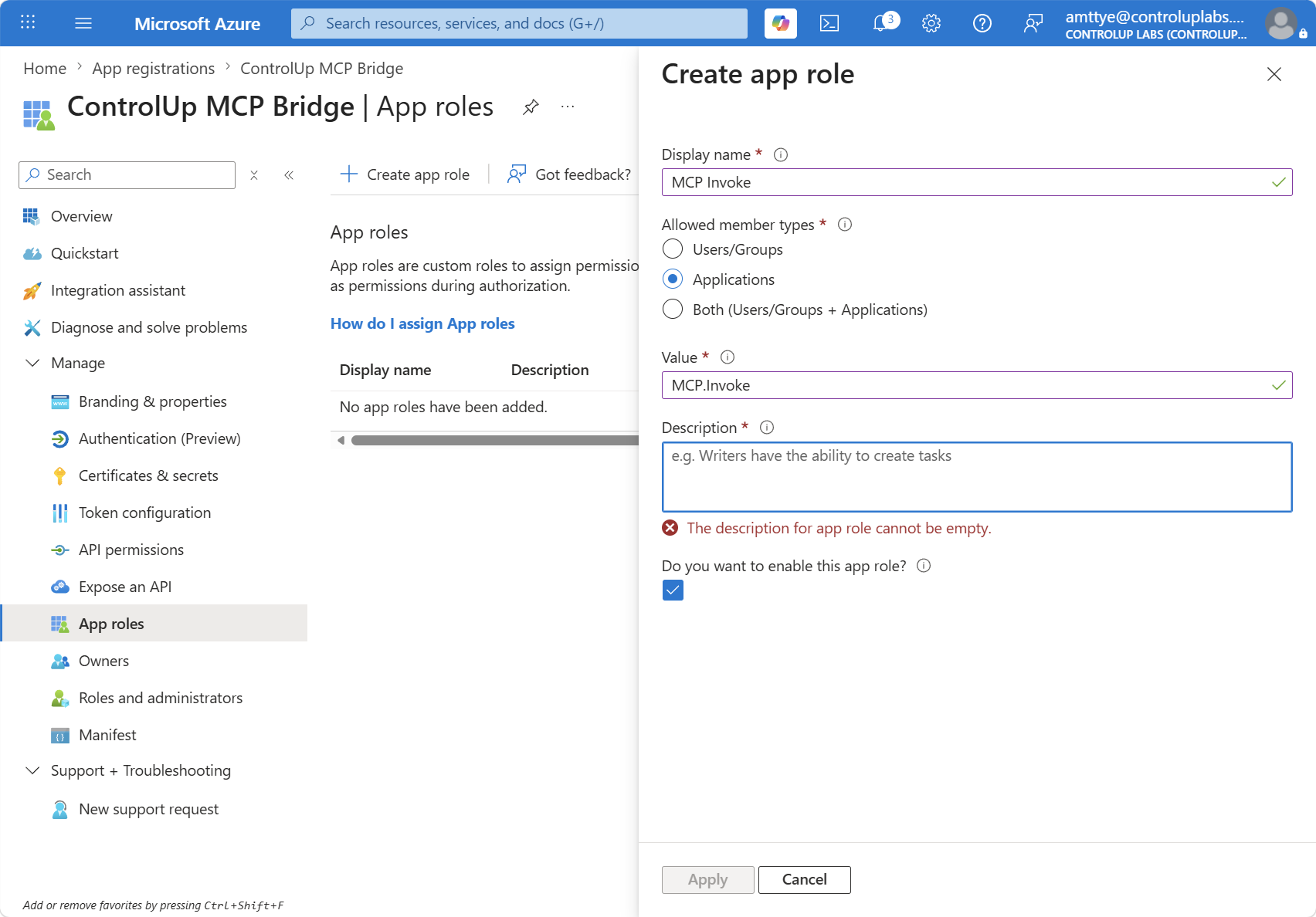
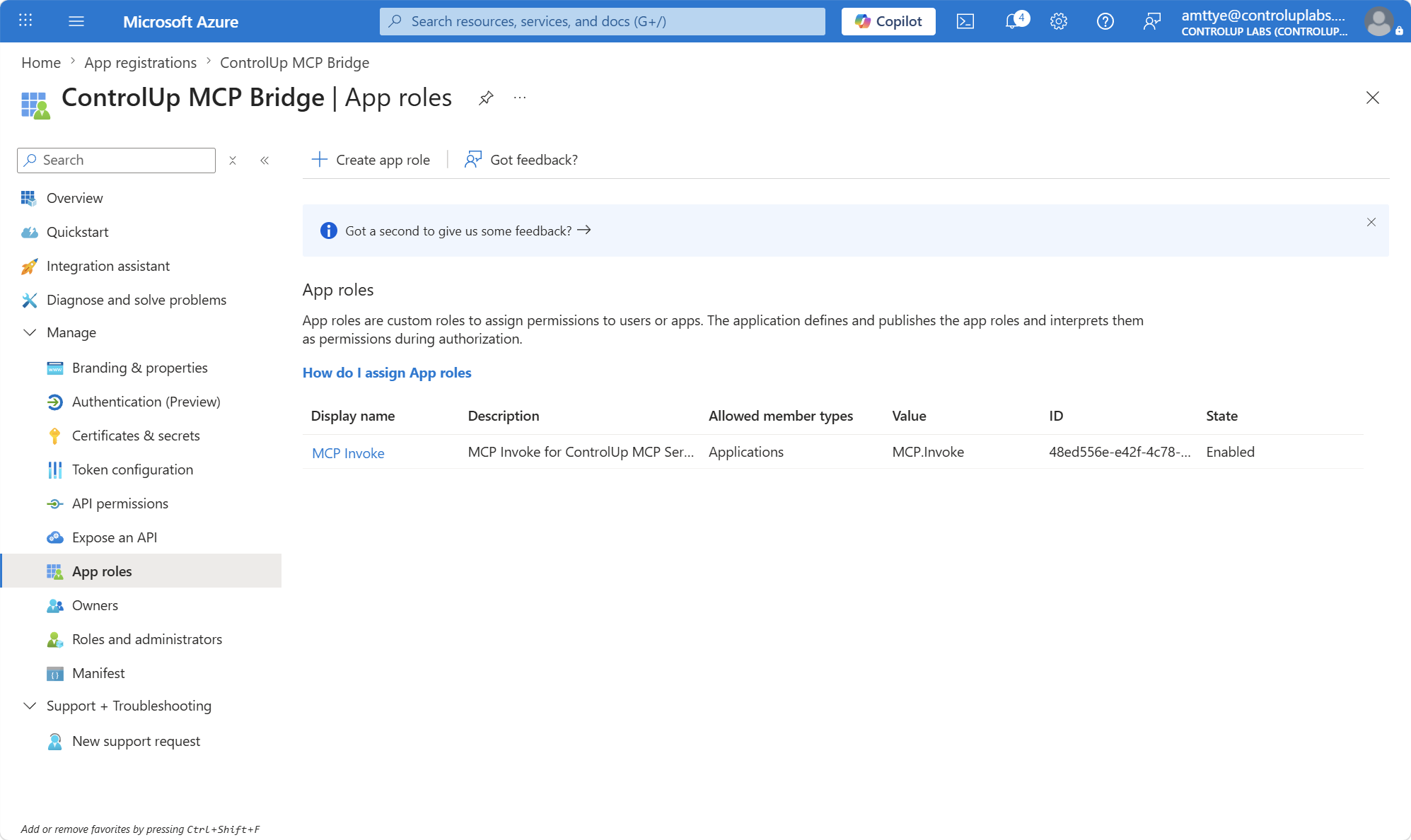
- An app role for Applications — create a role (mine: display name MCP Invoke, value
MCP.Invoke, member type Applications). This is what makes an app-only token meaningful.
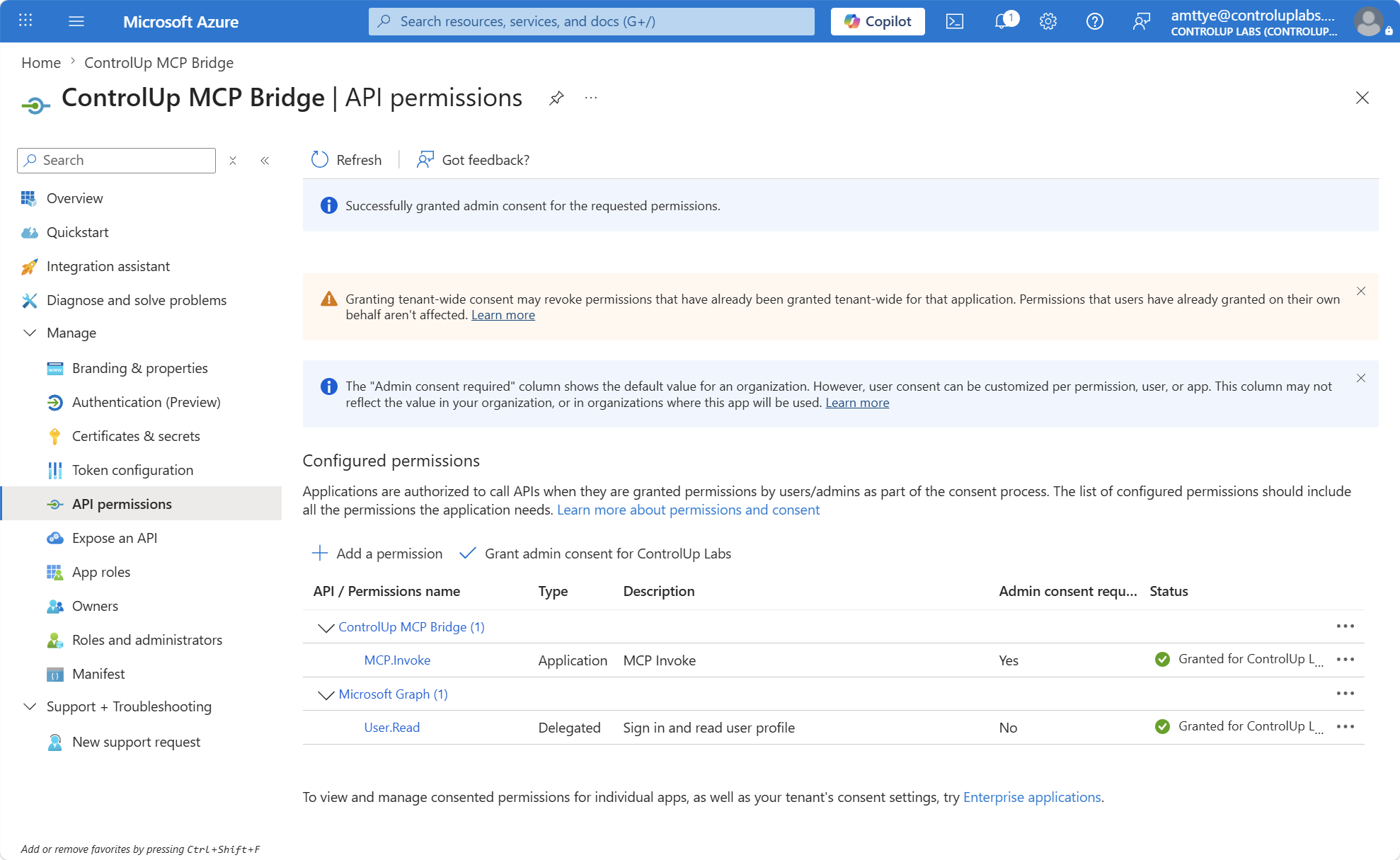
- Grant the app its own role + admin consent — API permissions → Add a permission → My APIs → select this same app → Application permissions →
MCP.Invoke→ then click Grant admin consent. The green checkmark matters; without consent, nothing downstream works.
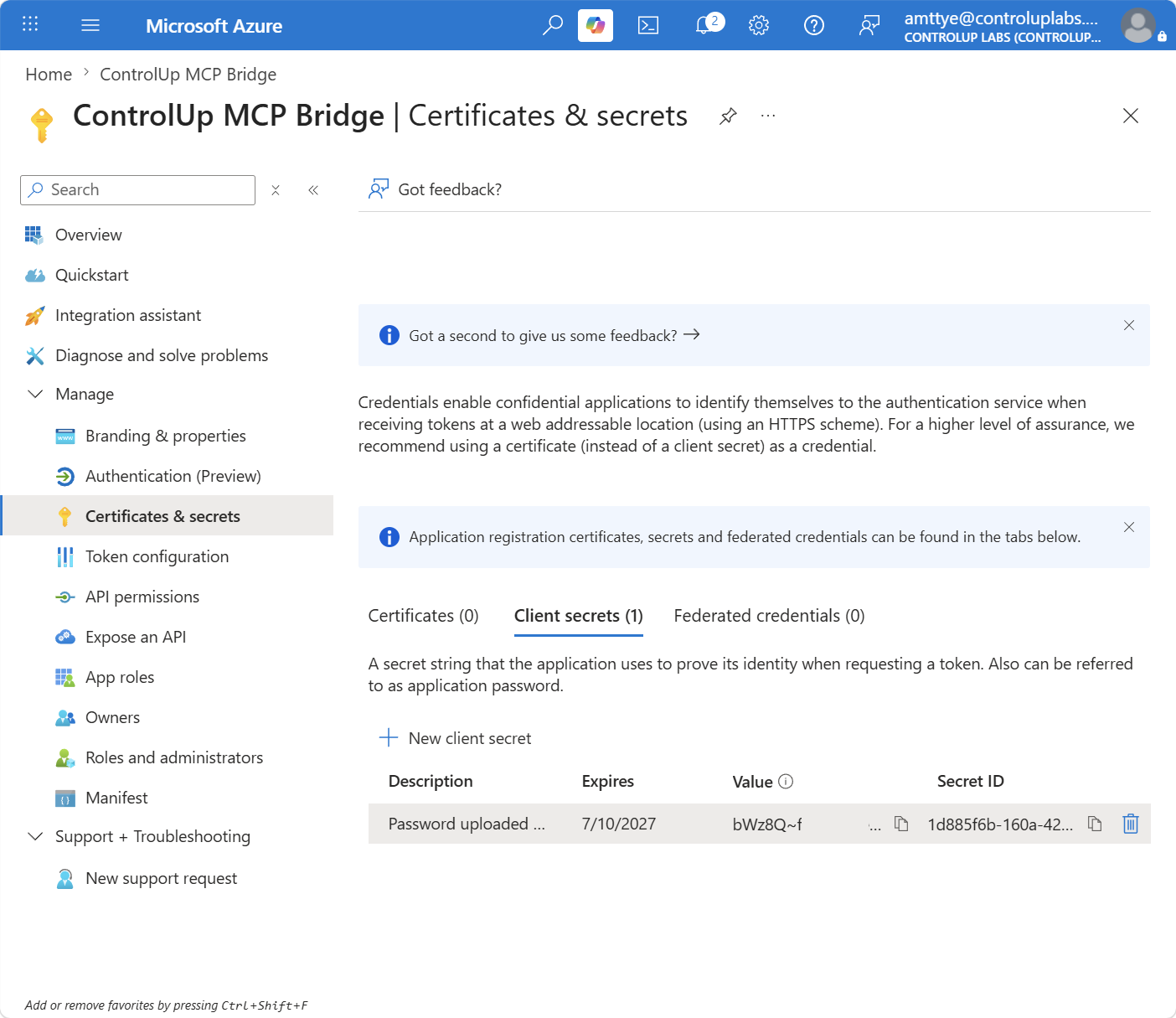
Finally, create a client secret and copy the value immediately (it’s shown once).
Step 3 — Deploy The Bridge from Cloud Shell
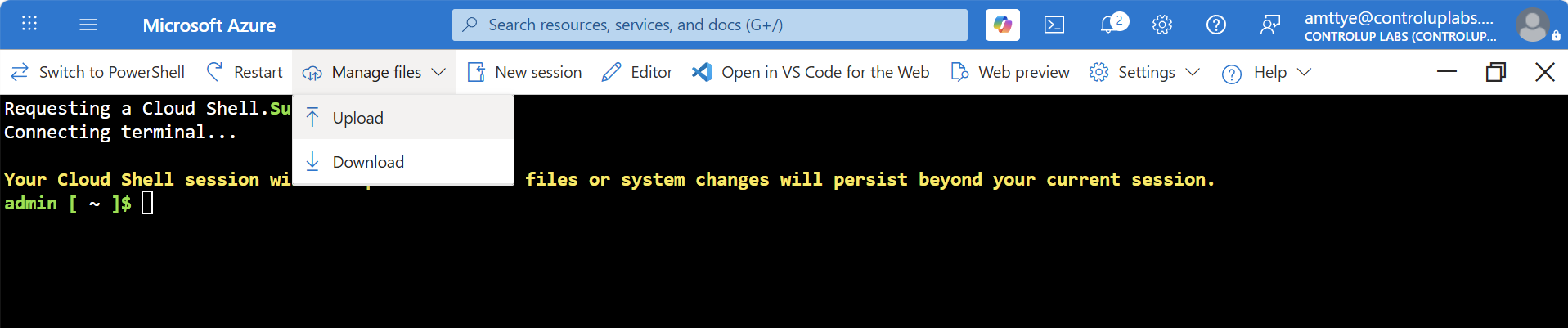
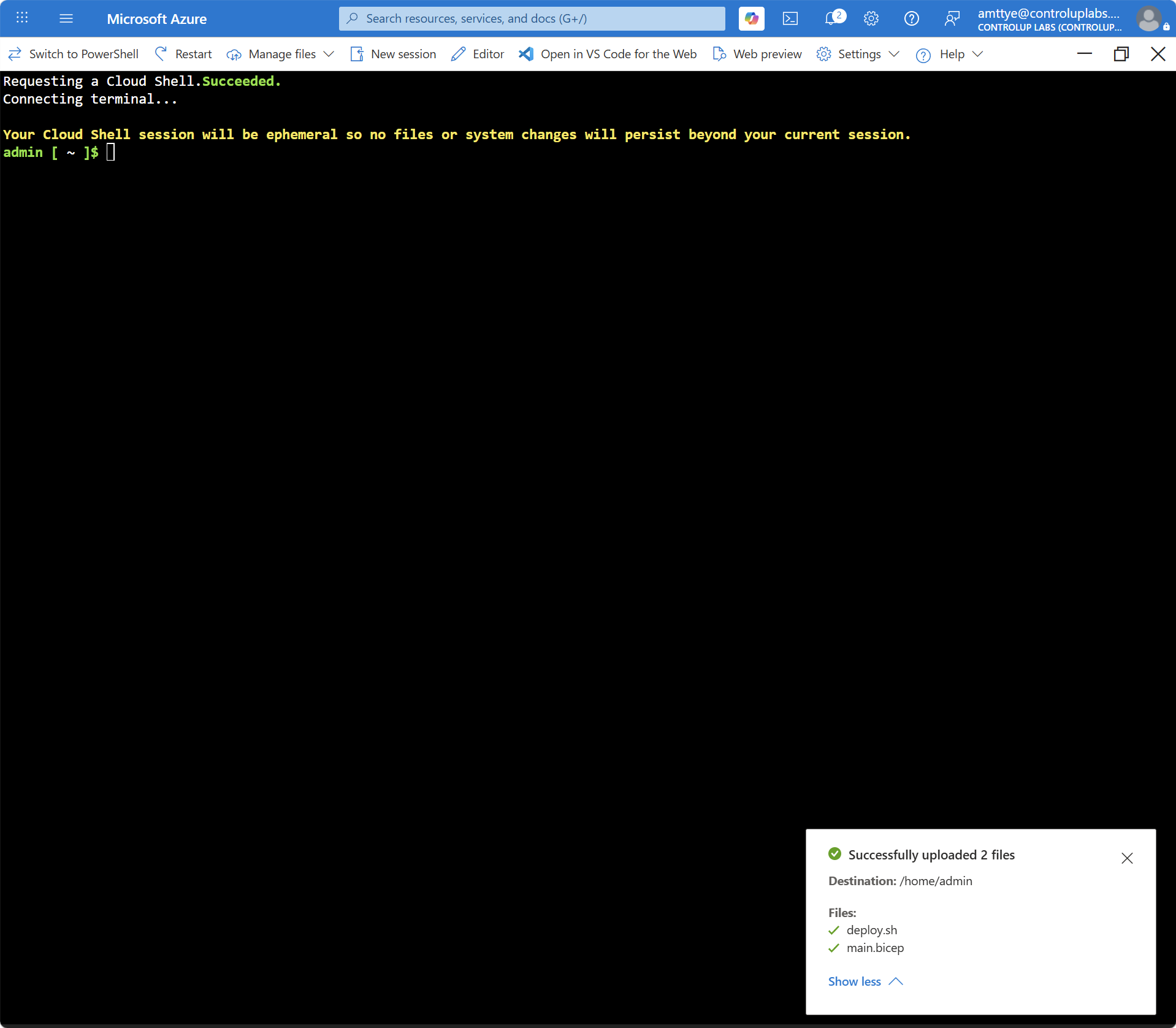
Everything Azure-side is two files run from Azure Cloud Shell (Bash): a Bicep template (Container App + managed identity + Key Vault references + Easy Auth) and a deploy.sh that builds the container image in the cloud with az acr build — no local Docker anywhere.
Upload both via Cloud Shell’s Manage files → Upload:
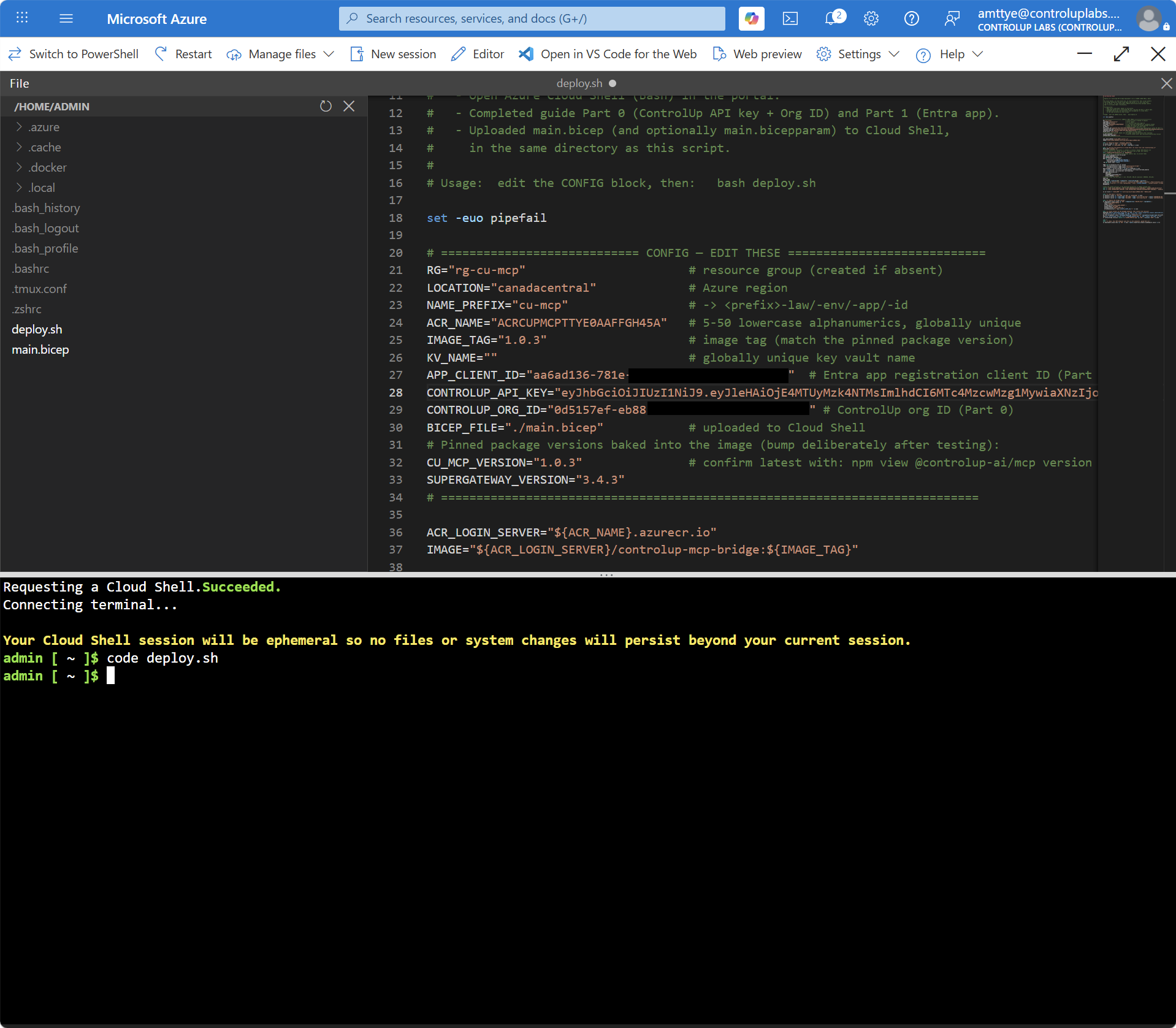
Edit the CONFIG block at the top of deploy.sh (this is the entire configuration surface):
# ============================ CONFIG — EDIT THESE ============================
RG="rg-cu-mcp"              # resource group (created if absent)
LOCATION="canadacentral"    # Azure region
NAME_PREFIX="cu-mcp"        # -> <prefix>-law/-env/-app/-id
ACR_NAME=""                 # 5-50 lowercase alphanumerics, globally unique
IMAGE_TAG="1.0.3"           # image tag (match the pinned package version)
KV_NAME=""                  # globally unique key vault name
APP_CLIENT_ID=""            # Entra app registration client ID (Step 2)
CONTROLUP_API_KEY=""        # from the ControlUp service user (Step 1)
CONTROLUP_ORG_ID=""         # ControlUp org ID (Step 1)
# Pinned package versions baked into the image:
CU_MCP_VERSION="1.0.3"      # confirm latest: npm view @controlup-ai/mcp version
SUPERGATEWAY_VERSION="3.4.3"
# ============================================================================
Then bash deploy.sh. The script authors the Dockerfile inline, builds and pushes the image, creates the managed identity, grants it registry-pull and Key Vault access before deploying (ordering matters — Container Apps validate image pulls and secret resolution at provision time), stores your ControlUp credentials in Key Vault, and deploys the Bicep. A few minutes later:
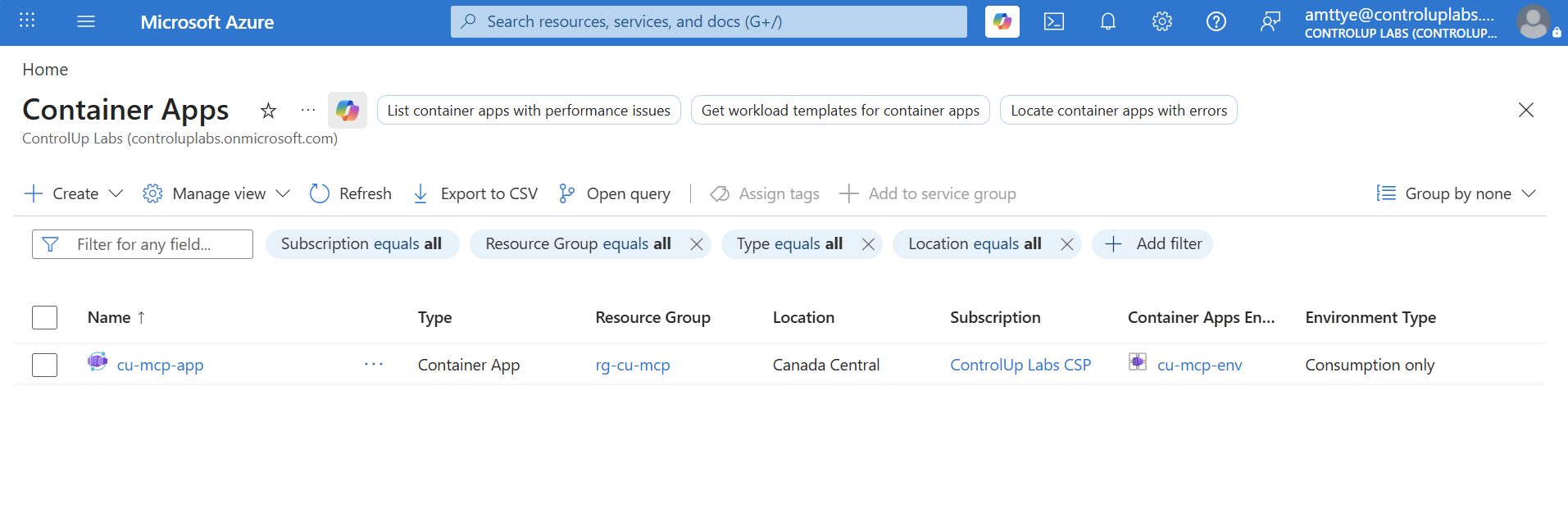
Your MCP endpoint is https://<your-app>.<region>.azurecontainerapps.io/mcp. And here’s the first counterintuitive success signal of this project:
$ curl -i https://<your-app>...azurecontainerapps.io/mcp
HTTP/1.1 401 UnauthorizedStep 4 — The Power Platform Custom Connector
In Power Apps → Custom connectors → New → Import an OpenAPI file, import a small connector definition whose one important operation is a POST /mcp tagged with x-ms-agentic-protocol: mcp-streamable-1.0 — that tag is what makes Copilot Studio recognize the connector as an MCP tool source.
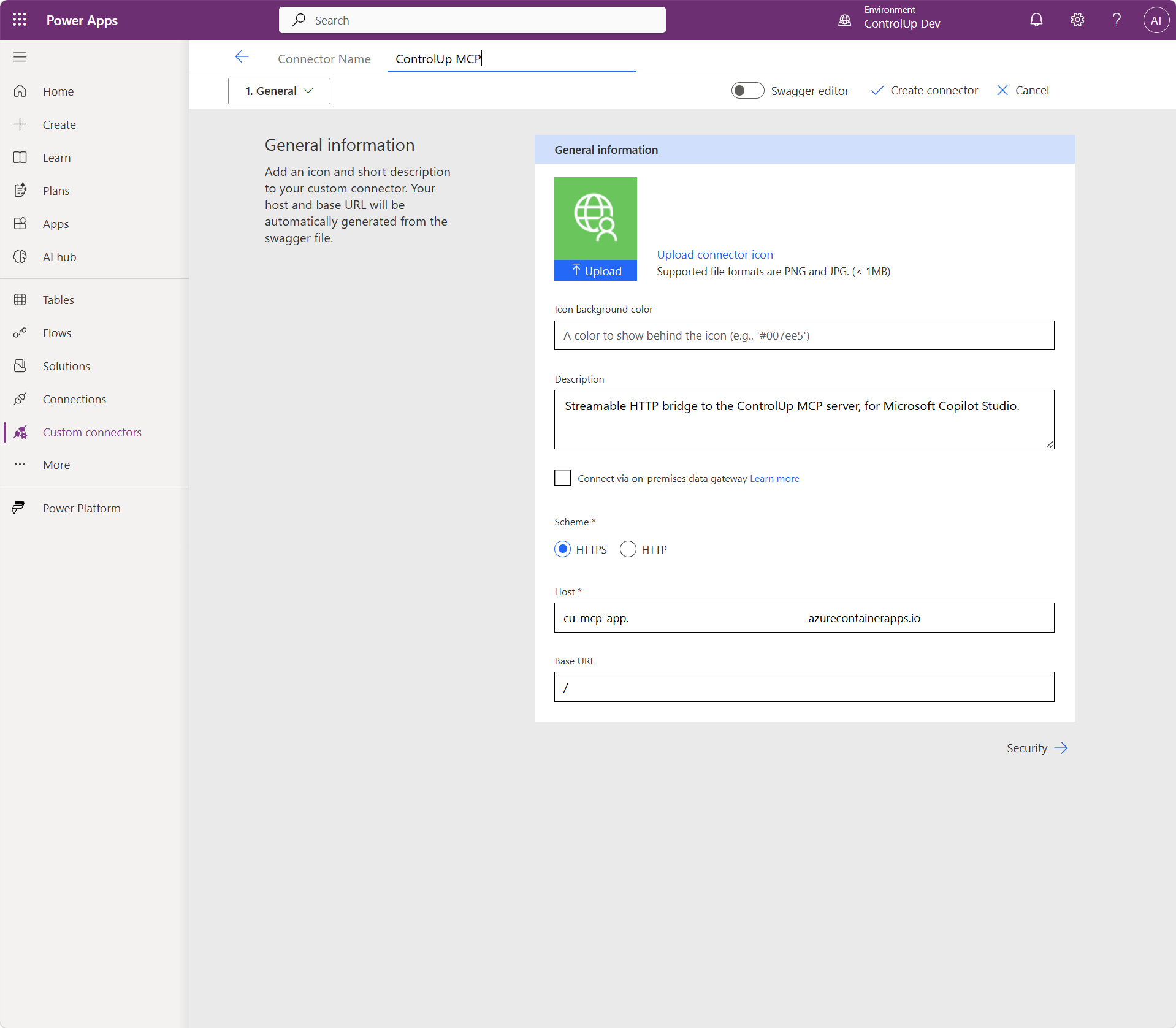
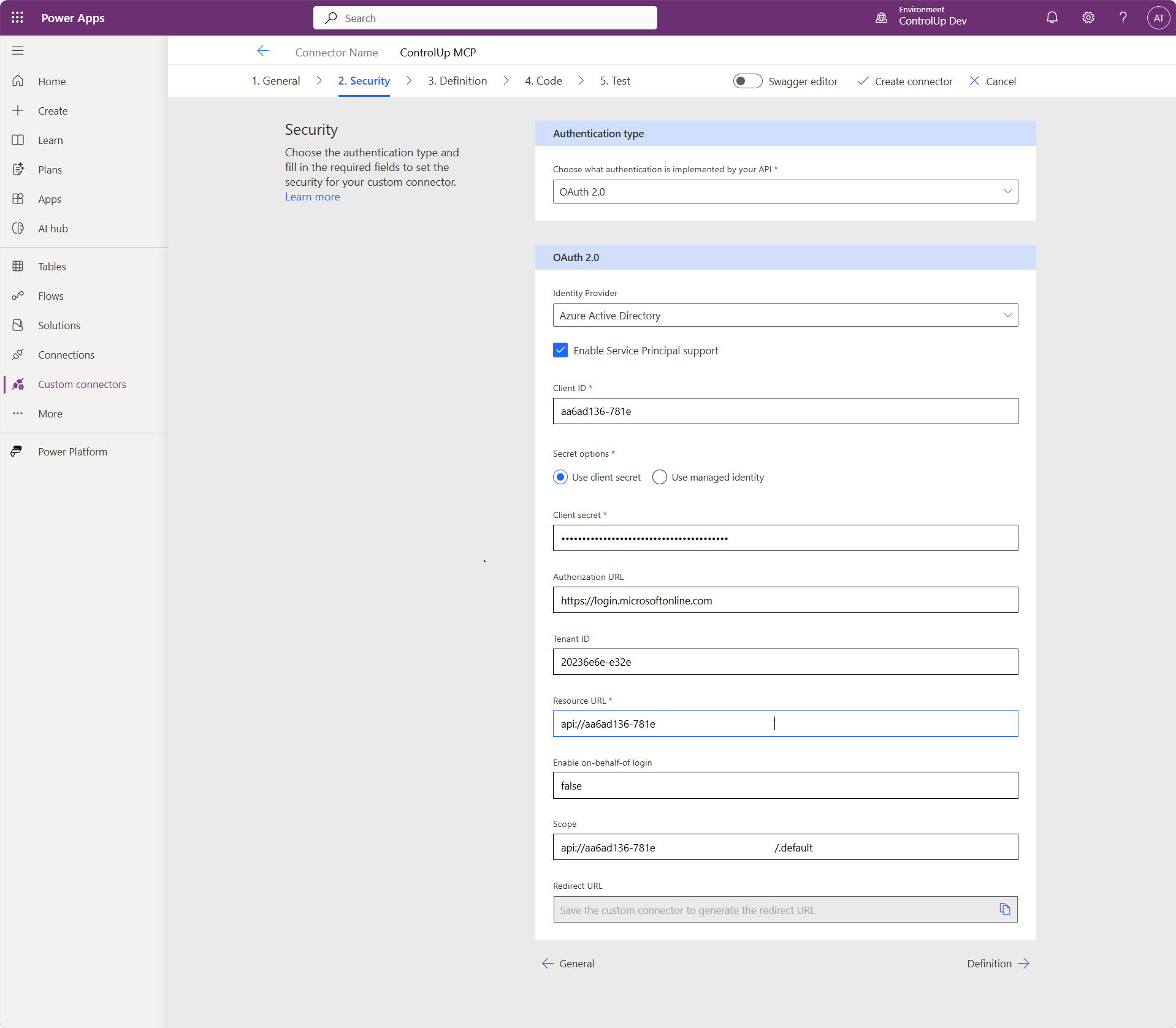
On the Security tab: OAuth 2.0 → identity provider Azure Active Directory → and check Enable Service Principal support. Fill in the client ID, client secret, tenant, and — the field that bites people — Resource URL = api://<client-id> with Scope api://<client-id>/.default. Then Create connector.
Step 5 — The Service Principal Connection (& The 405 Trick)
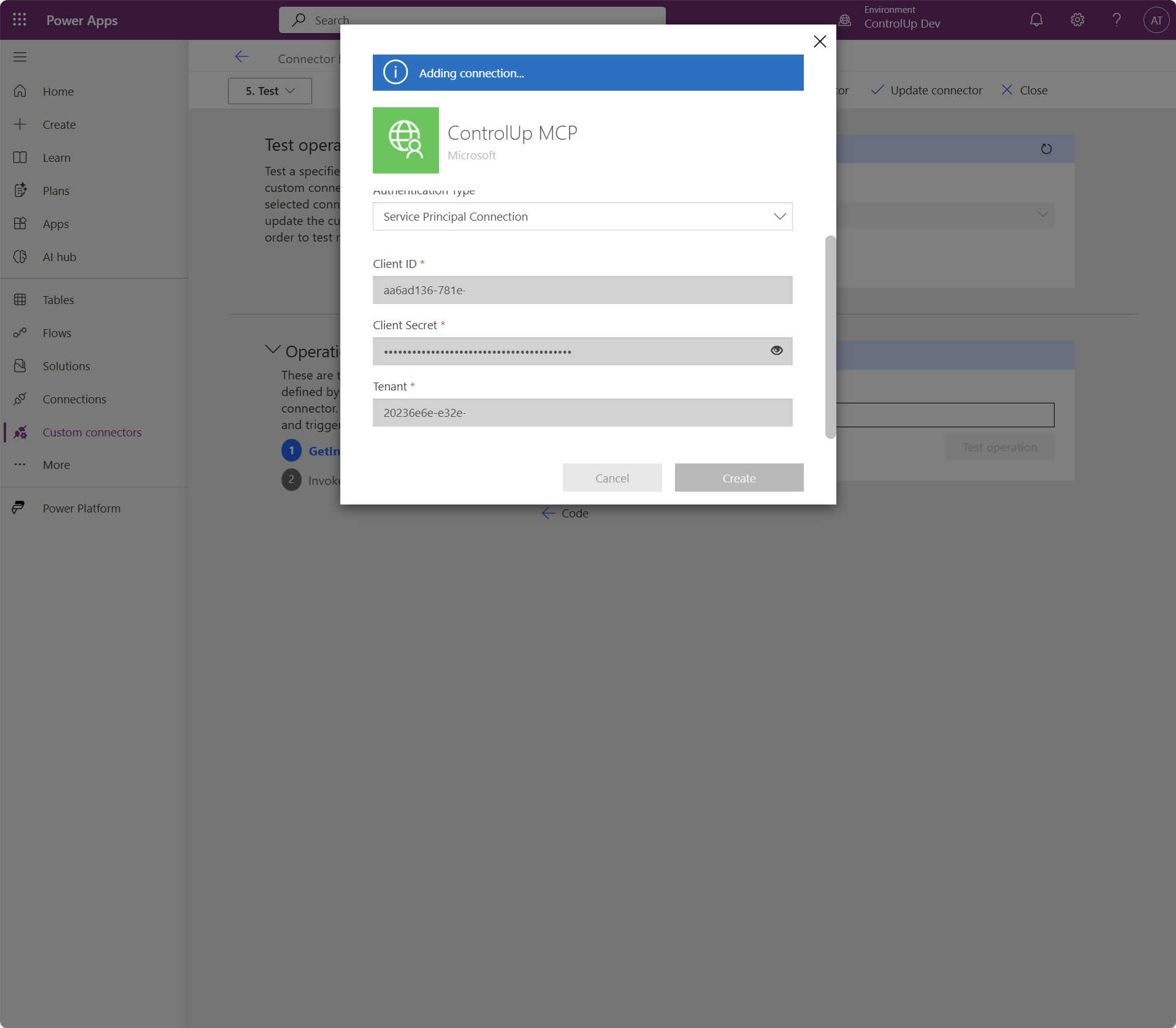
On the connector’s 5. Test tab, click + New connection and — this is important — choose Service Principal Connection, not the interactive sign-in. Enter the client ID, secret, and tenant. No login popup should appear; that’s the tell you’re on the right flow.

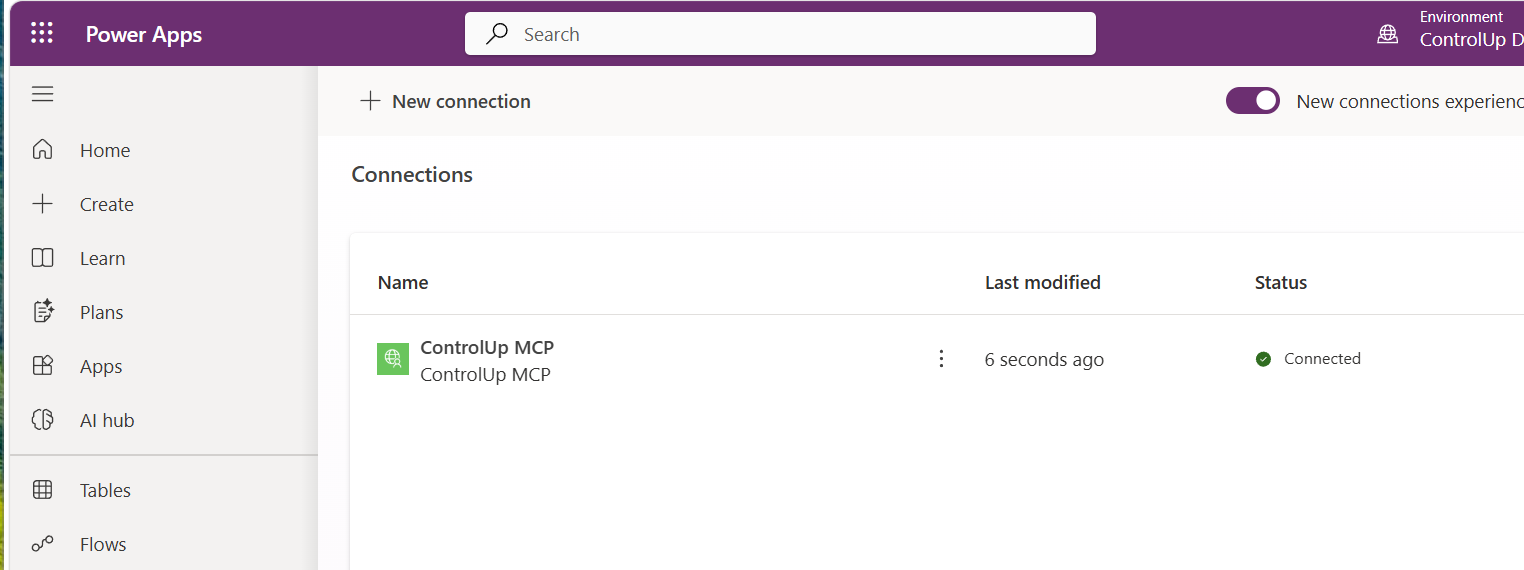
Now verify auth end-to-end with the second counterintuitive success signal. Select the connection, pick the GetInvokeMCP operation (a deliberate GET), and run Test operation:
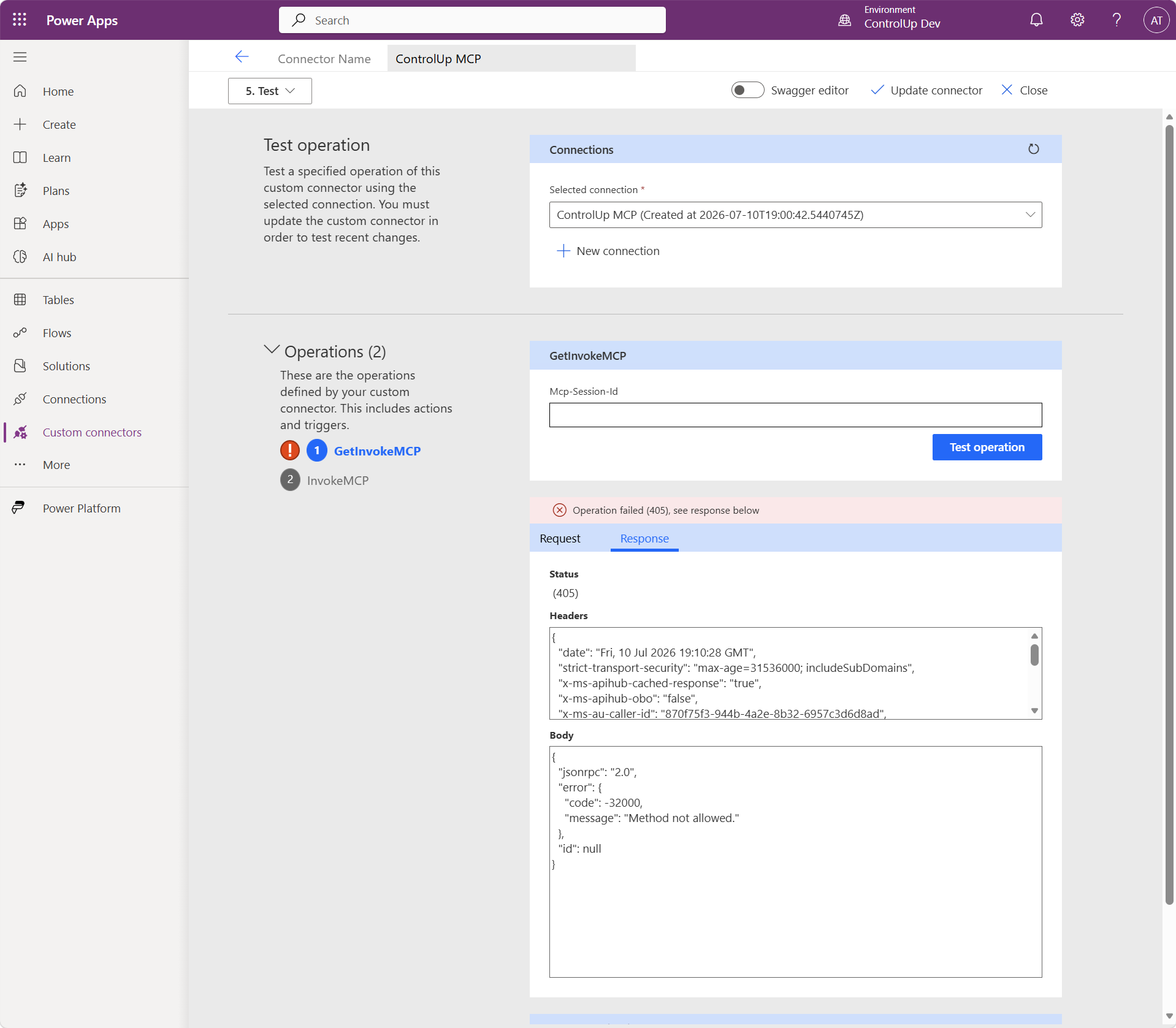
x-ms-apihub-obo: false — the request ran as the application, not on-behalf-of a user.) A 401 here means the token was rejected: recheck the Resource URL, tenant, and client ID on the Security tab.Step 6 — Wire It Into Copilot Studio
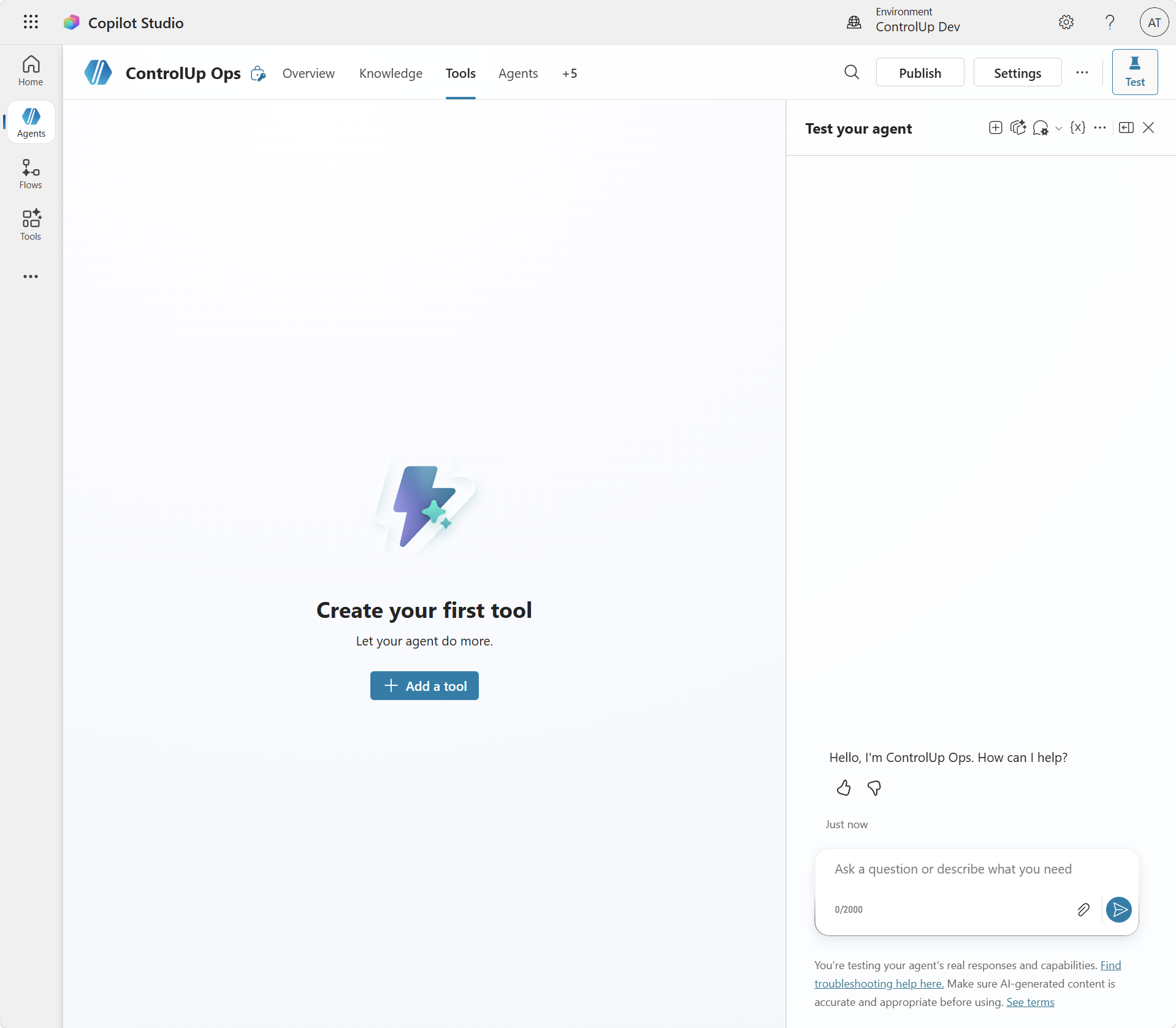
In your agent: Tools → Add a tool.
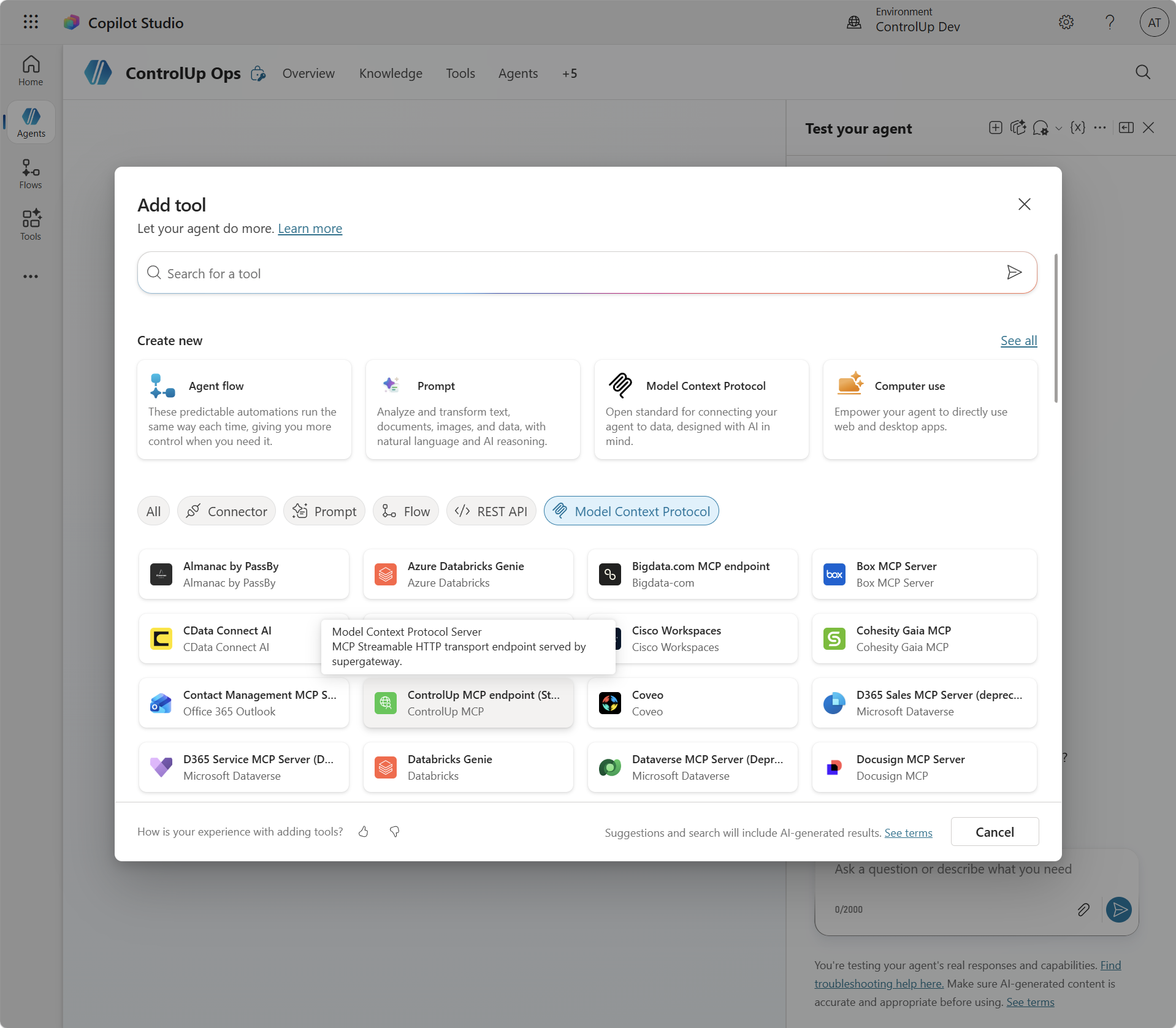
In the Add tool dialog, click the Model Context Protocol filter chip in the bottom row and select your connector-backed tool (mine shows as ControlUp MCP endpoint (Streamable HTTP)).
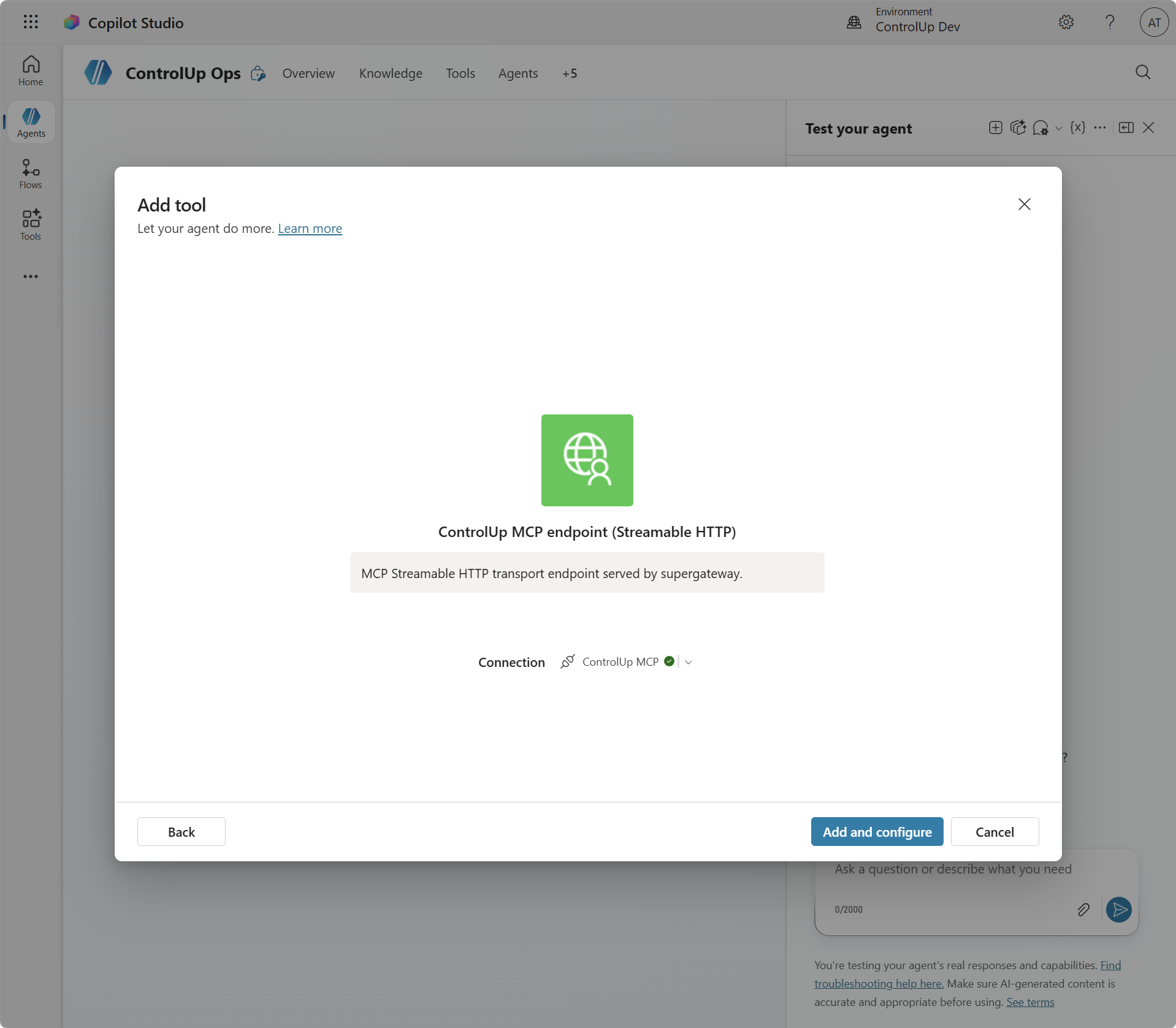
On the card that appears, confirm the Connection shows your service-principal connection with a green check, then Add and configure:
Now the single most important setting in this entire walkthrough. On the tool’s configuration page, expand Additional details and set Credentials to use = Maker-provided credentials (and Ask the end user before running = No). This is what makes the agent use the application connection for everyone. Leave it on the default (End-user credentials) and every user gets a “Connect to continue” interruption on first use — and scheduled/autonomous runs fail outright because there’s no live user to click it.
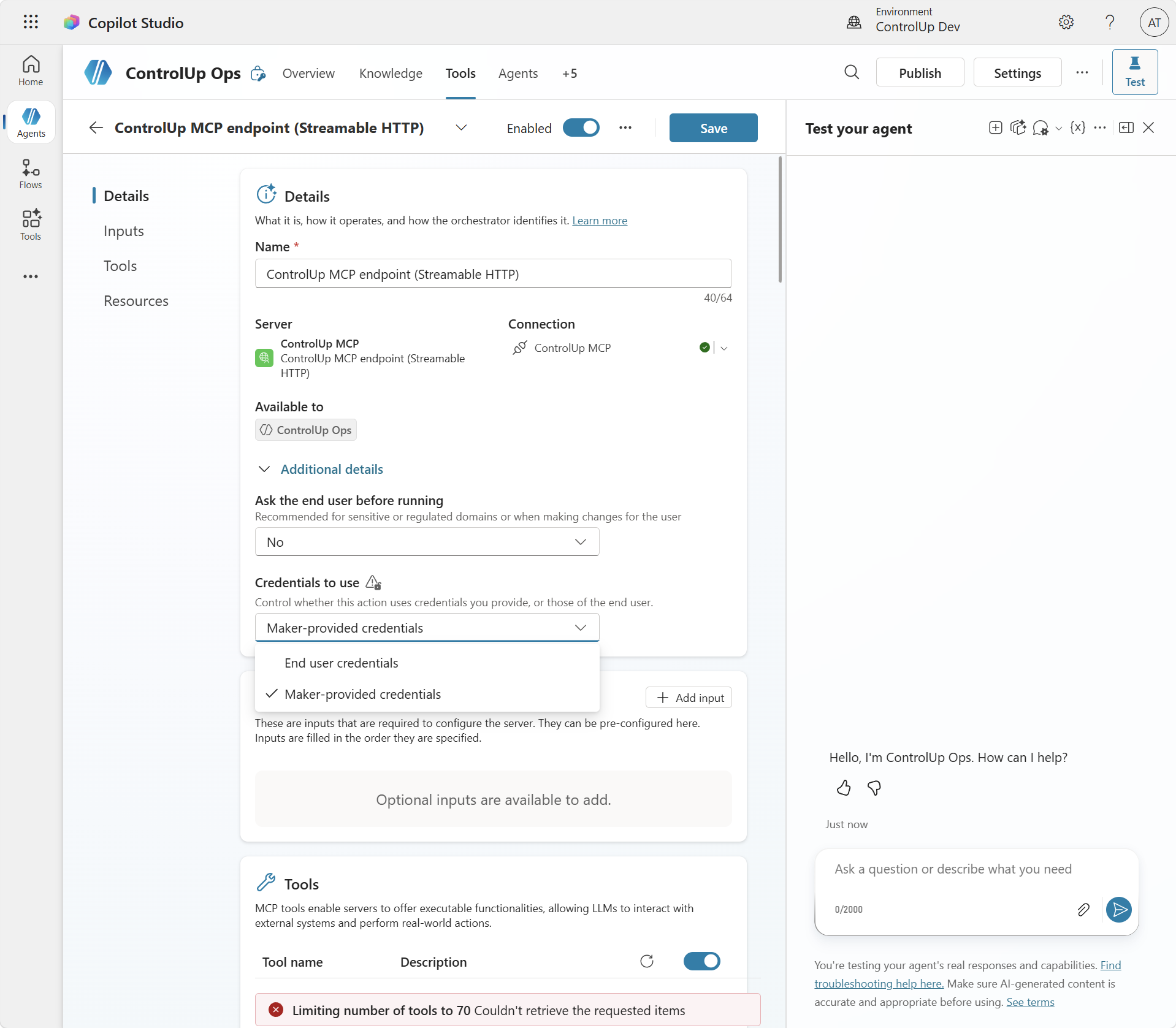
Save, and the ControlUp tools import straight off the server:
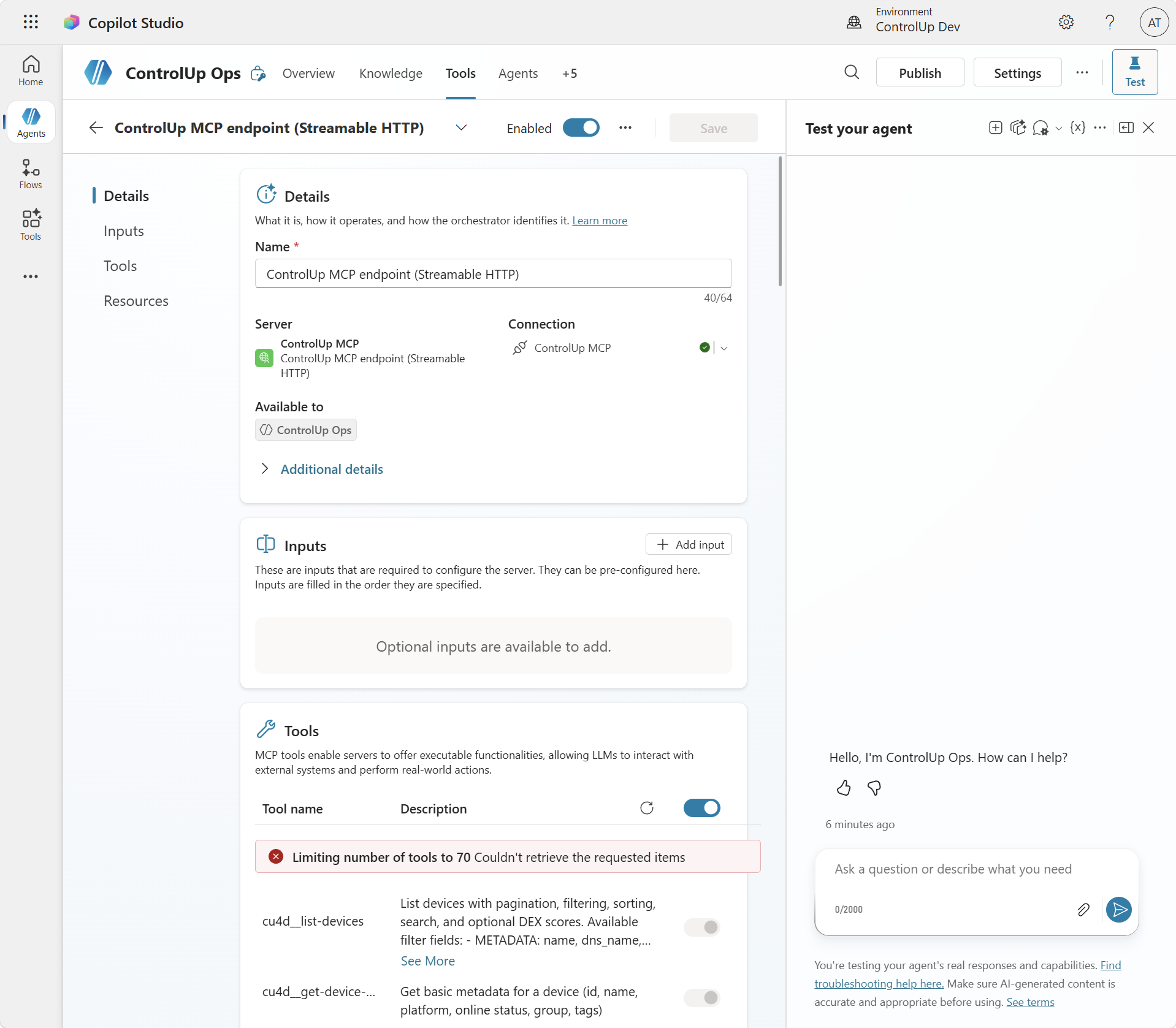
DOMAINS environment variable (e.g. DOMAINS=cu4d) in the deployment — a smaller tool list is also noticeably more reliable at discovery time.Step 7 — Ask It Something
Open the Test pane, start a new test session, and ask a question only your environment can answer — “What’s the slowest machine in my environment?”. The agent picks the right ControlUp tool, calls it through the bridge, and reasons over the results (see the screenshot at the top of this post). That’s a Copilot Studio agent answering from live ControlUp DEX data!
Rough Edges and Honest Caveats
- This is a proof of concept.
- The agent inherits the service account’s access. If a user shouldn’t have access to the data in ControlUp then they shouldn’t have access to the agent.
- Two things expire: the Entra client secret and the ControlUp API key. Rotate both on a calendar. (The Key Vault indirection means an API-key rotation doesn’t need a redeploy.)
- Scope the tool surface.
DOMAINSkeeps you under the 70-tool cap, improves discovery reliability, and limits what the agent can even attempt.
Wrap-up
Total moving parts: one Entra app, one container, one connector, one connection, one Copilot Studio tool setting. The result is a natural-language front end to live ControlUp telemetry inside the Microsoft ecosystem.