

“Houston, we have a problem.” Everyone knows that line. What people tend to forget is that the problem started long before anyone said it out loud. It had been building quietly in the systems underneath.
Every IT admin knows how this goes with servers. A file server runs low on disk space. A print spooler hangs overnight. A domain controller slows down and logons start to crawl. A web server stays “up” while quietly serving errors. Nobody notices until employees or customers can’t get to what they need, and then the helpdesk phones start ringing.
So, where do you start? How do you see what every server is doing right now, check that your users can actually reach it, and fix the problem before it ever becomes a ticket?
“If you can’t measure it, you can’t improve it.”
In this blog, I’ll show how ControlUp gives you Mission Control for your server environment, what that looks like for each kind of server you run, Windows and Linux alike, and what it means for your business. Mission Control doesn’t just read telemetry from inside the spacecraft. It also pings the spacecraft from the ground to confirm it’s responding. Your servers deserve the same treatment.
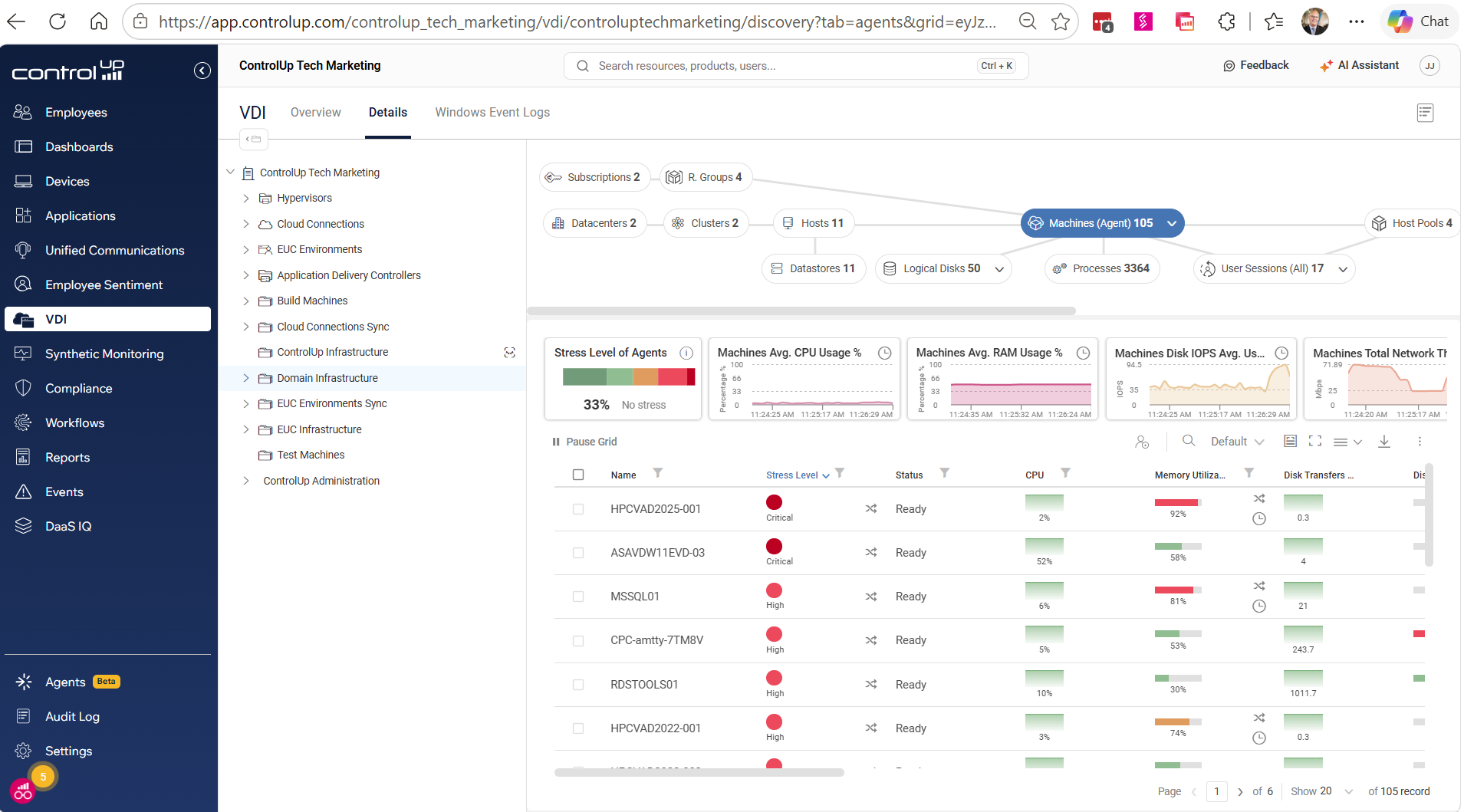
Figure 1: The ControlUp Real-Time Console showing live performance across different server roles.
Server Management Challenges
Most IT teams already have good tools for deploying, patching and securing servers. Those tools handle the “what is installed” side of the house. They’re much less helpful when the question is “why is this server slow right now?” or “can my users actually get to it?”
Think of it like a car. The service schedule covers oil changes and tire rotations. But the dashboard is what tells you the engine is overheating while you’re doing 70 on the highway. Many server teams have the service schedule but no real dashboard.
And the variety makes it harder. A typical enterprise, whether on-premises, in Azure or AWS, or both, runs some mix of:
- Domain controllers (Active Directory, DNS, DHCP)
- File servers and print servers
- Remote Desktop Services (RDS/RDP) session hosts
- VDI and DaaS hosts
- Application servers, web servers and database servers
- Infrastructure servers such as certificate authorities and license servers
- The hypervisor hosts underneath all of it
- Linux servers for web hosting, applications, databases and containers
Each one breaks in its own way. Without a dashboard, troubleshooting means remoting into machines one by one, opening Task Manager, digging through event logs and hoping you picked the right server first. That adds up to a longer mean time to resolution (MTTR), more escalations and frustrated employees. There must be a better way.
Introducing ControlUp for Server Troubleshooting and Remediation
Luckily, there is. ControlUp is one platform for monitoring the Windows servers, virtual desktop hosts and hypervisors in your environment, and it works for any server you add to it. Here are the main components:
- Real-Time Console: real-time monitoring, alerting and remote management of your environment.
- Proactive Synthetic Monitoring: a cloud-based service that runs continuous availability and performance tests against your virtual desktops, web servers and applications.
- Pulse Assistant and Insights: an AI-powered layer that surfaces the server issues that deserve your attention, explains the likely root cause in plain language and guides you to the next step, so you spend less time digging through data.
#1: See Every Server in Real Time
The Real-Time Console puts every managed machine in one live grid. Processes, sessions, services and resource usage update as they happen. Sort, filter and drill down without opening a remote session on each box.
Say the helpdesk reports slow logons. Instead of guessing, you sort by CPU and one domain controller is clearly working harder than its peers. Or users complain that the shared drive crawls, and the file server lights up with a disk queue that keeps climbing. The server in trouble stands out, so you go straight to the right machine.
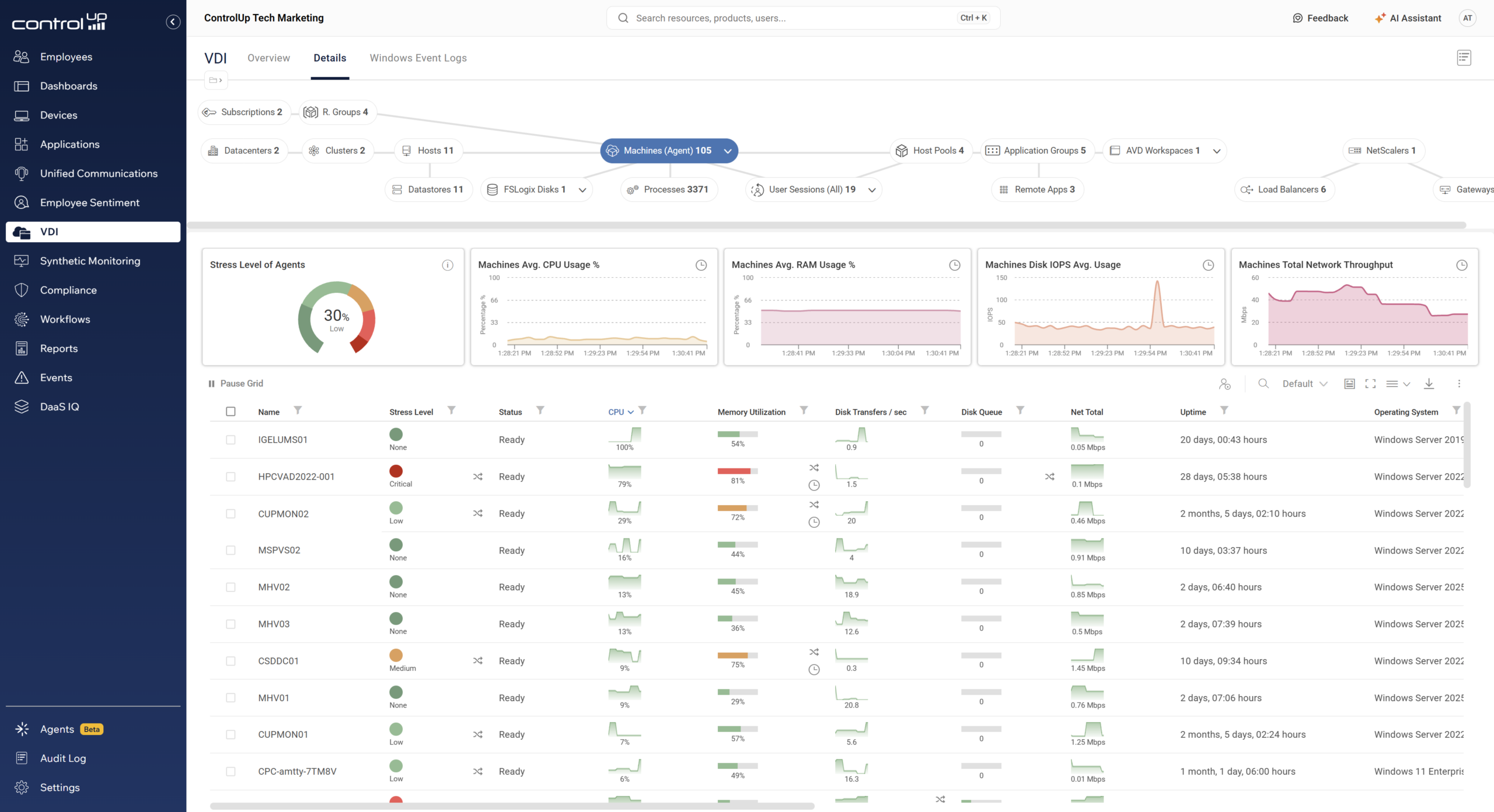
Figure 2: A server with high CPU usage highlighted in the Real-Time Console.
#2: Get Alerted Before Users Notice
Let’s be honest, nobody can stare at a console all day. ControlUp watches for trouble in two complementary ways, from the inside out and from the outside in.
From the inside out: triggers. Triggers watch for the conditions you care about, and the ControlUp Monitor checks for them 24/7, even when nobody has the console open. What you watch for depends on the server. You might alert when a file server volume drops below a free-space threshold, when the print spooler stops, when a critical service goes down on an application server, or when CPU stays pinned on an RDS session host. Alerts can be sent by email through your SMTP servers.
From the outside in: synthetic monitoring. Here’s the catch with inside-out monitoring. A server can look perfectly healthy on paper while users still can’t get in. The web service is running, but the site returns errors. The virtual desktop host is up, but a published desktop won’t launch. That’s where Proactive Synthetic Monitoring comes in. It continuously tests your resources the way a user would, and tells you the moment something stops responding.
- HTTP/S tests: Check the availability of any web server or web service as often as every minute.
- Web transaction tests: Simulate click-for-click user interactions with your web and SaaS applications, with built-in templates for common apps and support for multi-step flows.
- Test from where it matters: Run tests from ControlUp’s cloud, from your own data center, or both, and view results by location in list or map views.
Together, the two approaches answer the two questions that matter: what’s happening inside the server, and can people actually use it?
The goal is simple: hear about the low disk, the stopped service or the unreachable website from ControlUp, not from an employee ticket. As we all know, the cheapest incident is the one that never becomes a ticket.
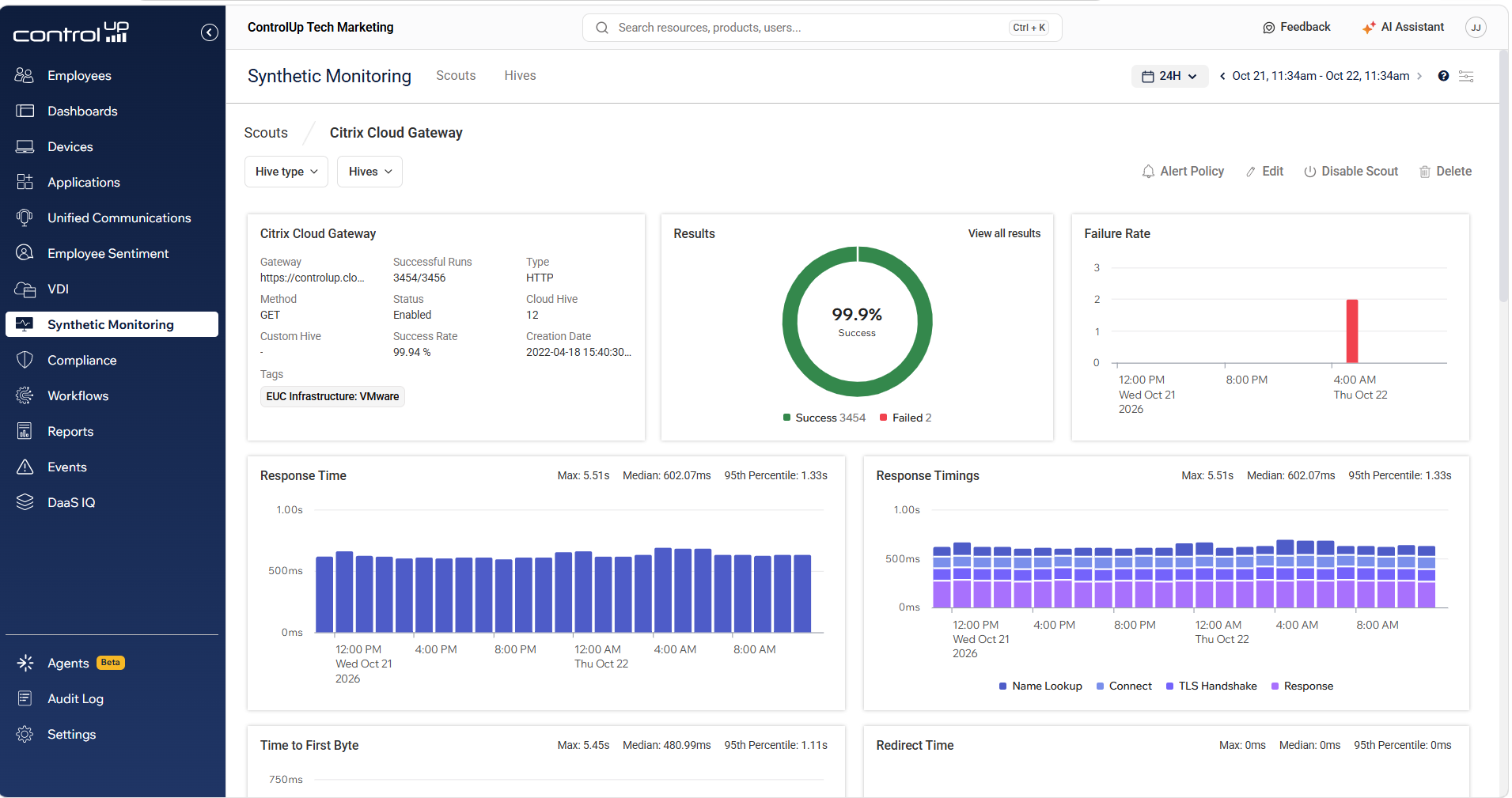
Figure 3: Synthetic test results showing availability by location.
#3: Fix Common Problems Automatically
Alerts are good. Fixes are better. ControlUp’s Script-based Actions let you run proven fixes against a server with a click. Automated Actions go a step further, running those scripts automatically as follow-up actions when a trigger fires. Think of it as a “set it and forget it” fix for the problems that keep coming back.
ControlUp’s own documentation gives examples like these:
- A process uses more than 90% CPU for over five minutes: kill the process.
- Free space on a machine’s C: drive drops below 5%: find large files or folders and log a Windows event for troubleshooting.
- A service that should always run stops: restart the service.
- A new machine is added to a host: add it to ControlUp and install the ControlUp Agent.
Automation is powerful, so ControlUp adds guardrails. Security policies and throttling limit what can run. An Automated Actions Setup Wizard controls which scripts can be automated and who is allowed to configure them. Automated Actions need at least one running ControlUp Monitor, and your license must include the feature.
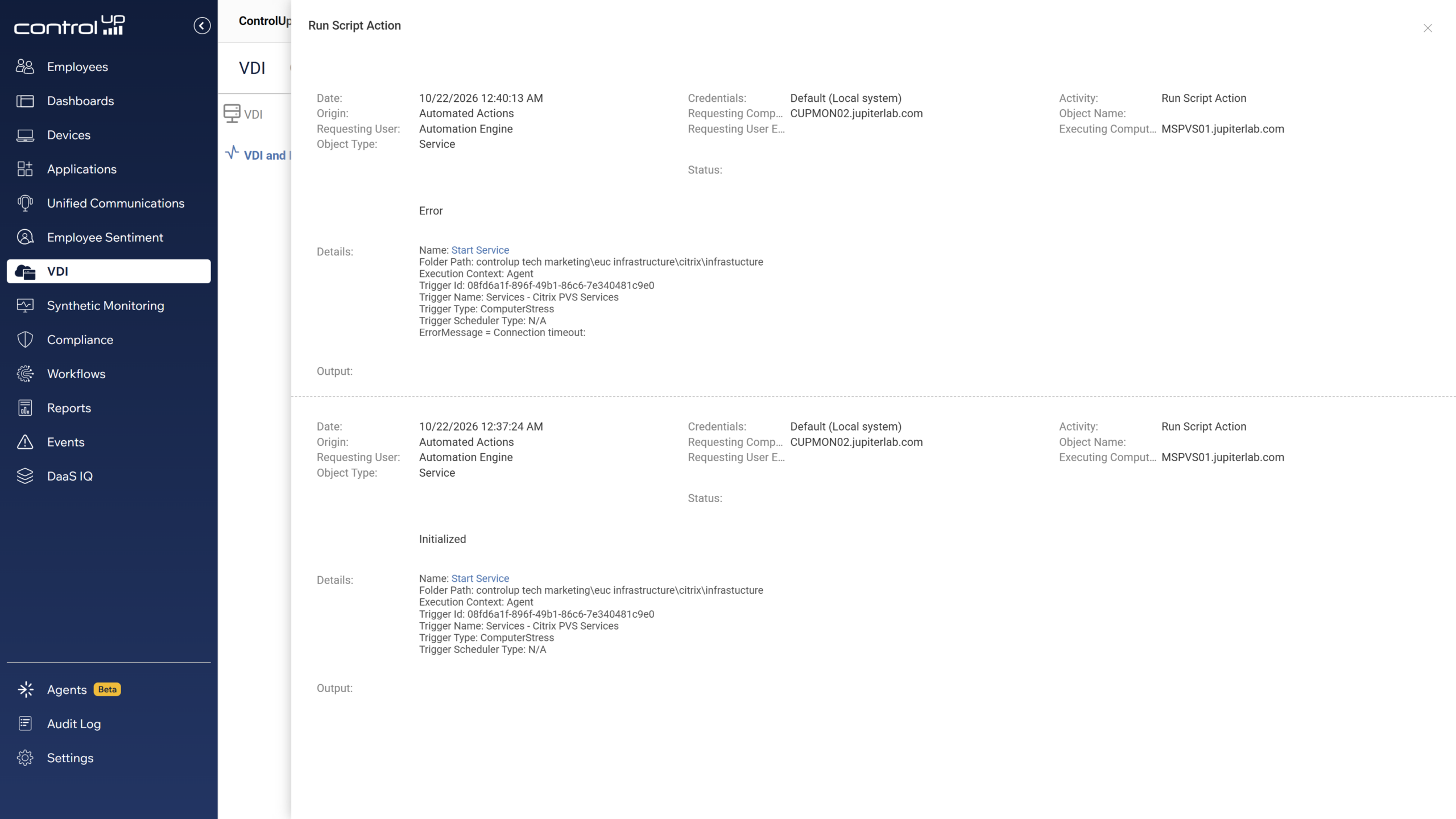
Figure 4: The result of a trigger with an Automated Action that restarts a stopped service.
#4: Plan Capacity With History and Dashboards
Real-time data tells you what’s happening now. Historical data tells you what has been happening over weeks and months. ControlUp’s built-in virtual expert gives sizing recommendations, so you can give resources to the servers that need them and take them back from the ones that don’t. It’s also how you spot the file server whose volume has grown steadily for a year, or the session hosts that sit mostly idle and could be consolidated.
For the operations center or the helpdesk wall screen, ControlUp provides live web dashboards. Everyone sees the same picture without installing a console.
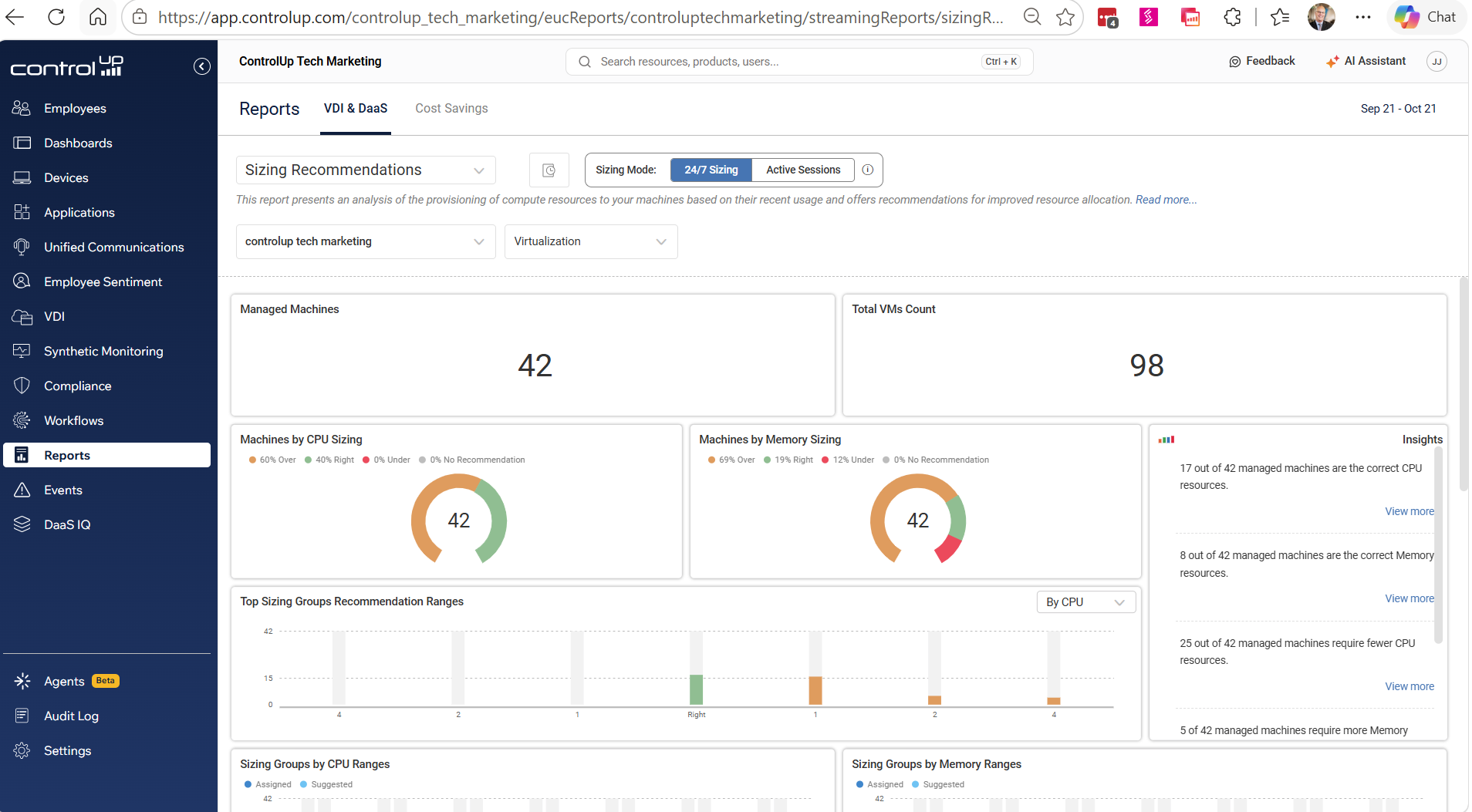
Figure 5: Historical server performance and sizing recommendations.
Every Server Has Its Own Kind of Trouble
The four capabilities above work for any server, but “a problem” looks different depending on the role. Here’s how it plays out across the servers most IT teams run.
Domain Controllers
When a domain controller struggles, everything that depends on authentication feels it: slow logons, failed sign-ins, group policy that won’t apply.
How ControlUp Detects It: You can see CPU and memory pressure on every domain controller side by side, and keep an eye on the services that matter, such as Active Directory Domain Services, DNS and Netlogon.
ControlUp’s Fix: A trigger fires when a core directory service stops, and an Automated Action restarts it before logons start to suffer.
File Servers
File servers fail slowly, then all at once. Disks fill up, a handful of users hammer the share, and everyone else waits.
How ControlUp Detects It: ControlUp tracks free space and disk activity, and shows which processes are driving the load.
ControlUp’s Fix: When free space on a data volume drops below 5%, ControlUp alerts the storage team and runs a script that finds the largest folders.
Print Servers
A hung spooler is the classic Monday-morning ticket. Nothing prints, and nobody knows why.
How ControlUp Detects It: ControlUp watches the spooler service, so you know the moment it stops.
ControlUp’s Fix: A trigger detects the stopped spooler and an Automated Action restarts it before the first user complains.
RDS and RDP Session Hosts
On a shared host, one heavy session can slow down everyone else.
How ControlUp Detects It: The console shows resource use per session and per process, so you can find the noisy user or the runaway application in seconds instead of hunting through Task Manager.
ControlUp’s Fix: When a process holds more than 90% CPU for five minutes, ControlUp ends it and alerts the team.
VDI
Virtual desktops depend on healthy session hosts, healthy hypervisors and healthy brokering infrastructure all at once. When any link breaks, the user’s desktop doesn’t launch, and they don’t care which link it was.
How ControlUp Detects It: The Real-Time Console shows the host and the machines on it together, so a logon storm or an overcommitted host is easy to spot. Synthetic monitoring adds the user’s point of view by testing the health and availability of your published VDI and DaaS resources as often as every five minutes. If a published desktop or app stops being available at 2 a.m., you find out then, not when the first shift tries to log in at 7.
ControlUp’s Fix: Drill from the stressed host to the machine or process causing it, and act on it right from the console.
The Hypervisor Underneath: Many VDI problems aren’t inside the desktop or the session host at all. A slow desktop may be perfectly healthy while a noisy neighbor on the same host starves it of CPU. ControlUp connects to the hypervisors you already run:
-
- VMware vSphere
- Citrix Hypervisor (XenServer)
- Nutanix AHV
- Microsoft Hyper-V
Once a hypervisor is connected, ControlUp adds a Hypervisors folder to your organization tree. There you can see how your virtual machines affect host resource usage, and take actions such as powering VMs on and off. For vSphere, ControlUp retrieves all the data centers, clusters and hosts your credentials can access.
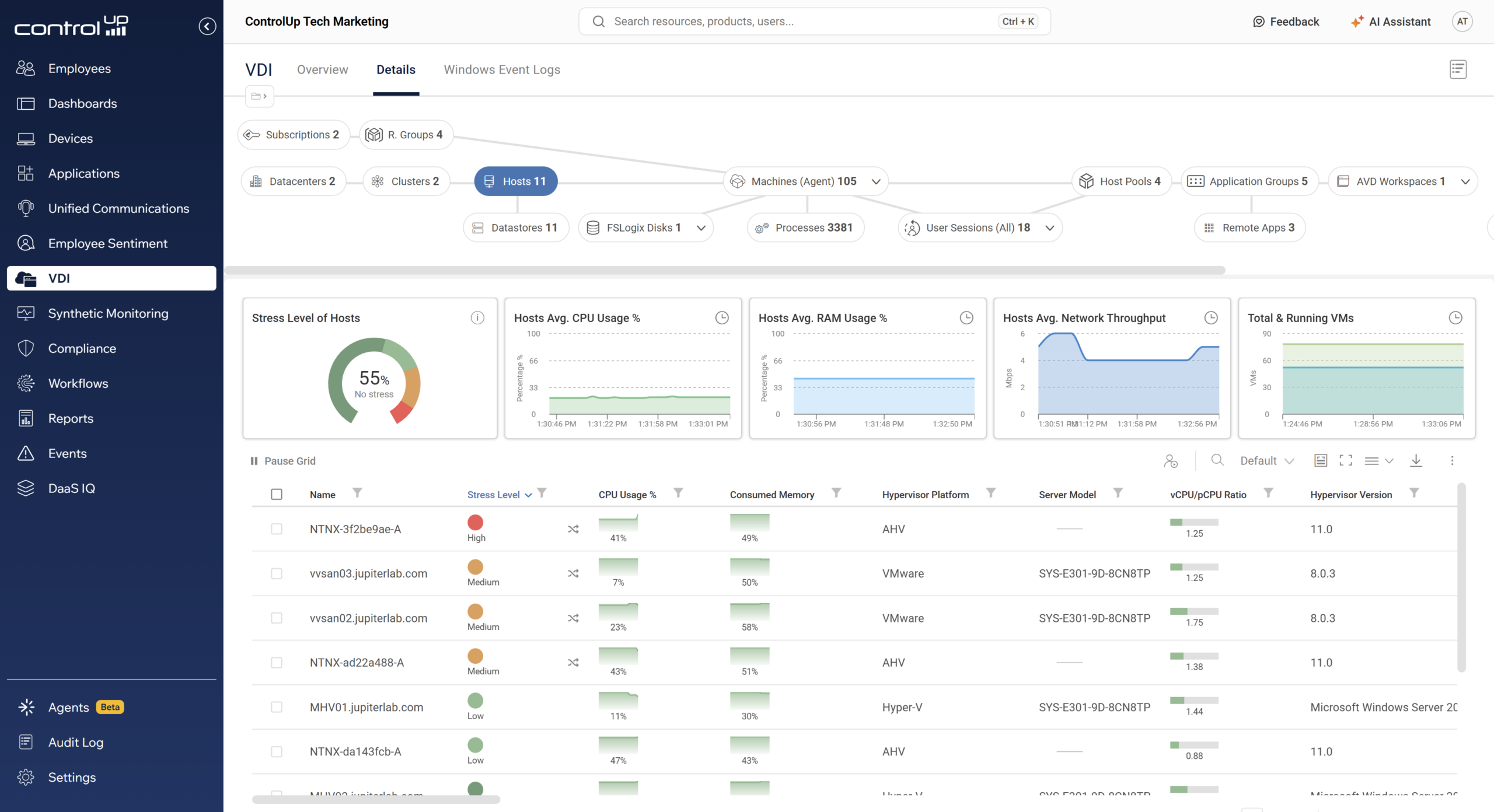
Figure 6: Hypervisor hosts and their resource usage in ControlUp.
Application Servers
Line-of-business and web application servers break quietly. A service dies, an app pool hangs, or memory creeps upward until the whole server stalls.
How ControlUp Detects It: ControlUp watches services, processes and memory, so the slow leak shows up long before the crash.
ControlUp’s Fix: A business-critical service stops overnight and an Automated Action restarts it, leaving a log entry for the morning review.
Web Servers
A web server is the one place where “it’s running” and “it’s working” can mean very different things. The process is alive, but the site is returning errors or timing out.
How ControlUp Detects It: An HTTP/S test checks the availability of your web server or web service from the outside, as often as every minute. Because tests can run from your own data center as well as ControlUp’s cloud, you can check internal sites the same way. For customer-facing apps, a web transaction test goes further and clicks through the steps a real user would take.
ControlUp’s Fix: When a test fails, the team is alerted right away. Pair that with the real-time data on the server itself, and you can see whether the cause is a stopped service, a maxed-out CPU or a full disk.
Database Servers
Database servers need headroom. High CPU, memory pressure and slow disks all show up as slow applications somewhere else.
How ControlUp Detects It: Real-time resource visibility tells you what’s stressed right now, and historical data shows the long-term trend.
ControlUp’s Fix: Use that history to plan capacity before the database becomes your bottleneck.
Infrastructure and Management Servers
Certificate authorities, license servers, RADIUS servers, deployment servers and brokers get very little attention until they fail, and then a lot of things fail with them.
How ControlUp Detects It: Watching the services on these quiet servers is some of the cheapest insurance you can buy.
ControlUp’s Fix: Alert the right team the moment a critical service stops, and restart it automatically if that’s safe to do.
Hypervisor Hosts
Whatever the guest servers are doing, the host decides how much they get.
How ControlUp Detects It: ControlUp connects to vSphere, Hyper-V, Nutanix AHV and XenServer, so you can see which VM is consuming the host.
ControlUp’s Fix: Once you find the noisy VM, take action on it without leaving the console.
Linux Servers
Good news: Linux doesn’t have to be the blind spot in your server environment. The ControlUp for Desktops agent can run on a Linux server, which means you get the same real-time visibility for your Linux estate that you get for your Windows servers. Same console, same live view, no separate tool to babysit.
That matters because Linux quietly runs a lot of the business. Some of the most popular enterprise uses include:
-
- Web servers: Apache and NGINX hosting public sites, customer portals and internal web apps
- Application servers: Java and other middleware running business-critical applications
- Database servers: PostgreSQL, MySQL and Oracle workloads
- Container and Kubernetes hosts: the nodes that run your containerized applications
- DevOps and CI/CD servers: build servers and pipeline runners such as Jenkins and GitLab runners
- Logging and monitoring platforms: the stacks that collect everything else’s data
Different jobs, same story. They run for months without anyone looking at them, and then one day something stops.
Example: Keeping a Web Server Healthy
Picture a Linux server hosting your customer portal on NGINX or Apache. It’s Friday evening, and nobody is watching it.
How ControlUp Detects It: Two things work together. The agent gives you live CPU, memory and disk data, along with the running processes and services, so you can see a web server worker process consuming more and more CPU, a log directory filling the disk, or the web service stopping altogether. Meanwhile, a synthetic HTTP/S test checks every minute that the portal actually answers from the outside. If either one trips, the team is alerted immediately, long before customers start emailing support.
ControlUp’s Fix: Pair the trigger with an Automated Action that runs a script to restart the web service, or to clean up old log files when disk space runs low. The portal comes back on its own, the next synthetic test confirms it’s answering again, and IT gets a record of what happened to review on Monday morning. No weekend fire drill, and no ticket.
The same pattern works for the rest of the list. Restart a stopped database service, flag a stressed container host, or alert when a build server runs out of disk.
The Benefit to Customers
So, how much time does your team spend finding server problems compared with fixing them? Here’s what ControlUp customers get from this approach:
-
- Faster troubleshooting: One live view of servers and hosts replaces remoting into machines one at a time.
- Fewer tickets: Triggers and synthetic tests catch issues early, and Automated Actions fix routine ones before users notice.
- Lower MTTR: Your engineers start at the right server with the right data.
- Confidence that it’s actually up: Continuous availability tests confirm that your desktops and web servers work from the user’s side, not just that the server is running.
- Smarter spending: Historical data and sizing recommendations help you right-size your infrastructure.
- One approach for every role: The same tools cover domain controllers, file and print servers, session hosts, application and web servers, Linux servers and the hypervisors beneath them.
- Flexibility: Use it in the cloud or fully on-premises.
Frequently Asked Questions
What servers can ControlUp monitor?
ControlUp monitors the Windows servers you add to it, along with the hypervisors beneath them: VMware vSphere, Citrix Hypervisor, Nutanix AHV and Microsoft Hyper-V. Linux servers are covered by running the ControlUp for Desktops agent on them.
Do I need to watch the console all day?
No. Triggers run 24/7 on the ControlUp Monitor, and synthetic tests run continuously, so you get alerted even when nobody has the console open.
How does ControlUp check that a web server or virtual desktop is available?
Proactive Synthetic Monitoring runs continuous tests from the outside. HTTP/S tests check the availability of any web server or service, and VDI and DaaS tests check the health and availability of your published resources. Tests can run from ControlUp’s cloud or from your own data center.
Can ControlUp fix problems on its own?
Yes. Automated Actions run scripts when a trigger fires, with security policies and throttling as guardrails. They require at least one running Monitor and a license that includes the feature.
Conclusion
Server problems rarely announce themselves. They build quietly until employees can’t work or customers can’t connect. ControlUp gives you real-time visibility into your Windows and Linux servers and the hypervisors beneath them, plus around-the-clock alerting, continuous synthetic availability testing, safe automation and historical insight. The result is fewer tickets that close faster, healthier infrastructure and people who stay productive.
In short, ControlUp helps you find and fix server problems before your users ever notice them.
Ready to run a healthier server environment? Schedule a demo today and see ControlUp in action.
