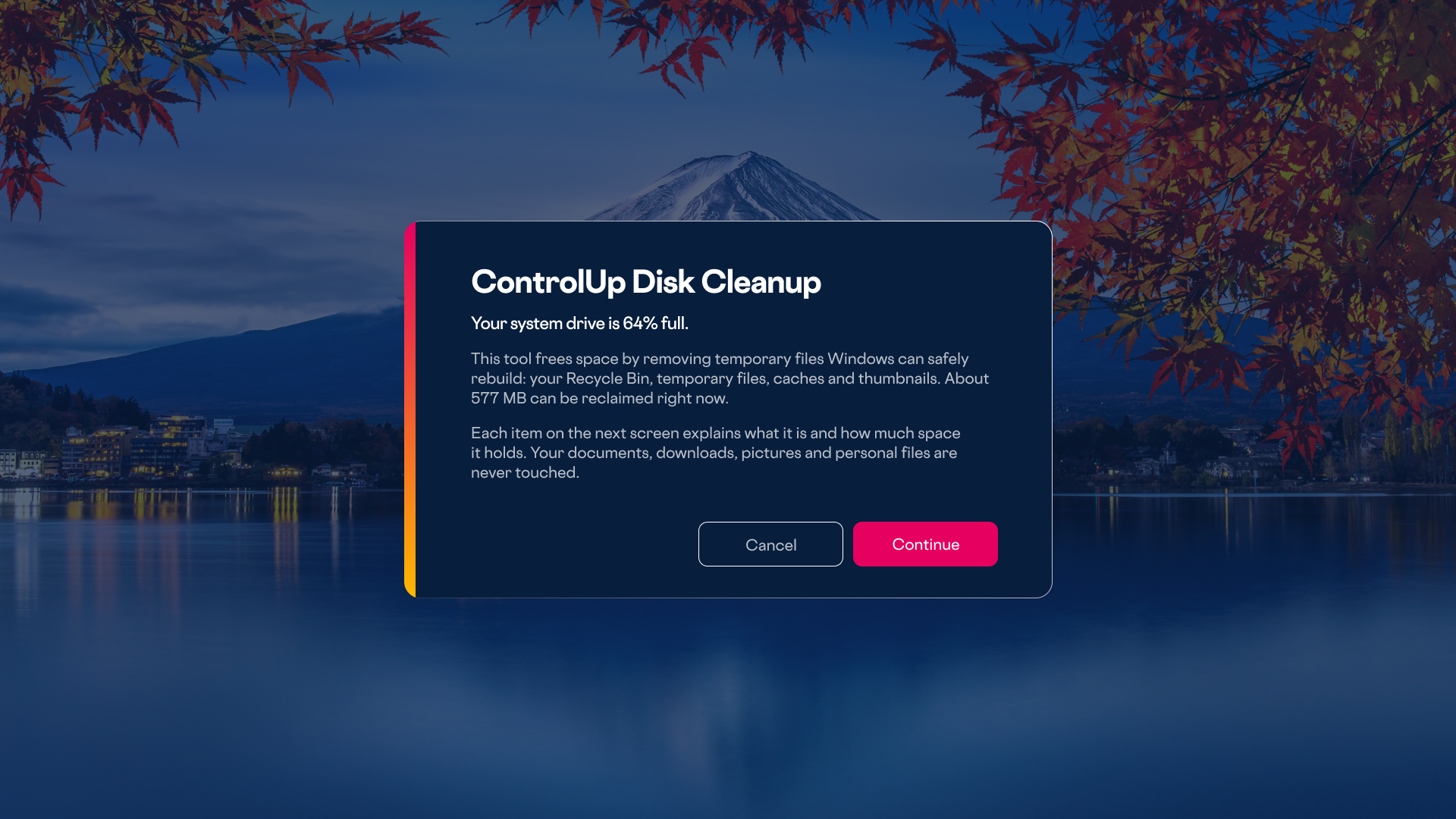

ControlUp provides a proactive approach to managing low disk space by enabling users to self-resolve issues before they escalate into IT tickets, significantly boosting operational efficiency.
- The system monitors disk space with intelligent, adaptive thresholds, notifying users directly and offering an intuitive interface to identify and remove unneeded files.
- ControlUp employs a "whichever is smaller" threshold logic (percentage or fixed value) and throttles notifications to ensure relevant, non-disruptive alerts.
- This self-service model empowers users to quickly address common disk space problems, allowing IT teams to dedicate resources to more critical challenges.
Low disk space is one of those problems that’s easy to see coming and still manages to catch IT off guard. A drive creeps toward full, performance degrades, an application throws a strange error, and by the time someone opens a ticket, the user has already lost time. The fix itself is usually simple. Something has to be deleted. The hard part has always been getting the right person, with the right context, to make that call quickly.
ControlUp has a couple of ways to close that gap, and neither of them requires IT to be the one holding the delete key.
The pattern: Detect it early, hand it to the user
The core idea works the same way regardless of what kind of disk you’re watching. A trigger monitors free space and fires once it crosses a threshold you define. Instead of routing straight to a help desk queue, the user gets a notification, either a quiet toast they can act on when convenient, or a more direct prompt if the situation is urgent. Clicking it opens a dialog showing the largest folders taking up space, with the option to review and remove what they don’t need.
No file explorer guesswork, no waiting on a ticket to route to the right technician, no IT staffer opening a stranger’s Downloads folder to figure out what’s safe to delete. The person who created the clutter is usually also the person best equipped to say what’s safe to throw away, and this puts that decision directly in front of them at the moment it matters.
One version of this pattern ships prepackaged: a threshold trigger and folder cleanup dialog that are ready to import as-is. If that fits your environment, it’s a fast way to get this running with almost no setup.
What about every other drive?
The pattern isn’t limited to one kind of disk. ControlUp takes the same philosophy and applies it to any volume on a monitored device.
Instead of a single fixed percentage, the ControlUp uses a “whichever is smaller” approach: it evaluates both a percentage-based threshold and a fixed free-space value, and triggers on whichever condition is more restrictive. That matters more than it sounds like it should. A flat percentage treats a 128 GB laptop drive and a 1 TB workstation drive the same way, and neither number alone works well across both. Checking both and reacting to the tighter one means users on small drives get warned early enough to matter, without users on larger drives getting nagged over normal usage.
ControlUp also builds in some restraint around how it talks to users. Notifications are throttled to a maximum per hour and per day, alerts about the same issue won’t repeat for a few hours once shown, and a startup window silences alerts for the first few minutes after boot so routine startup load doesn’t trigger a false alarm. The goal is a system that behaves like a check engine light: quiet until something is actually worth a person’s attention, and not the kind of tool that trains users to ignore it.
When disk space does trip the threshold, the user isn’t just told there’s a problem. They’re offered a path forward, either raising a ticket with the technical details already attached, or, where available, kicking off an automated investigation that looks at what’s actually consuming space and surfaces a recommended fix for the user or IT to approve.
Here’s what that experience looks like from the user’s side, start to finish.
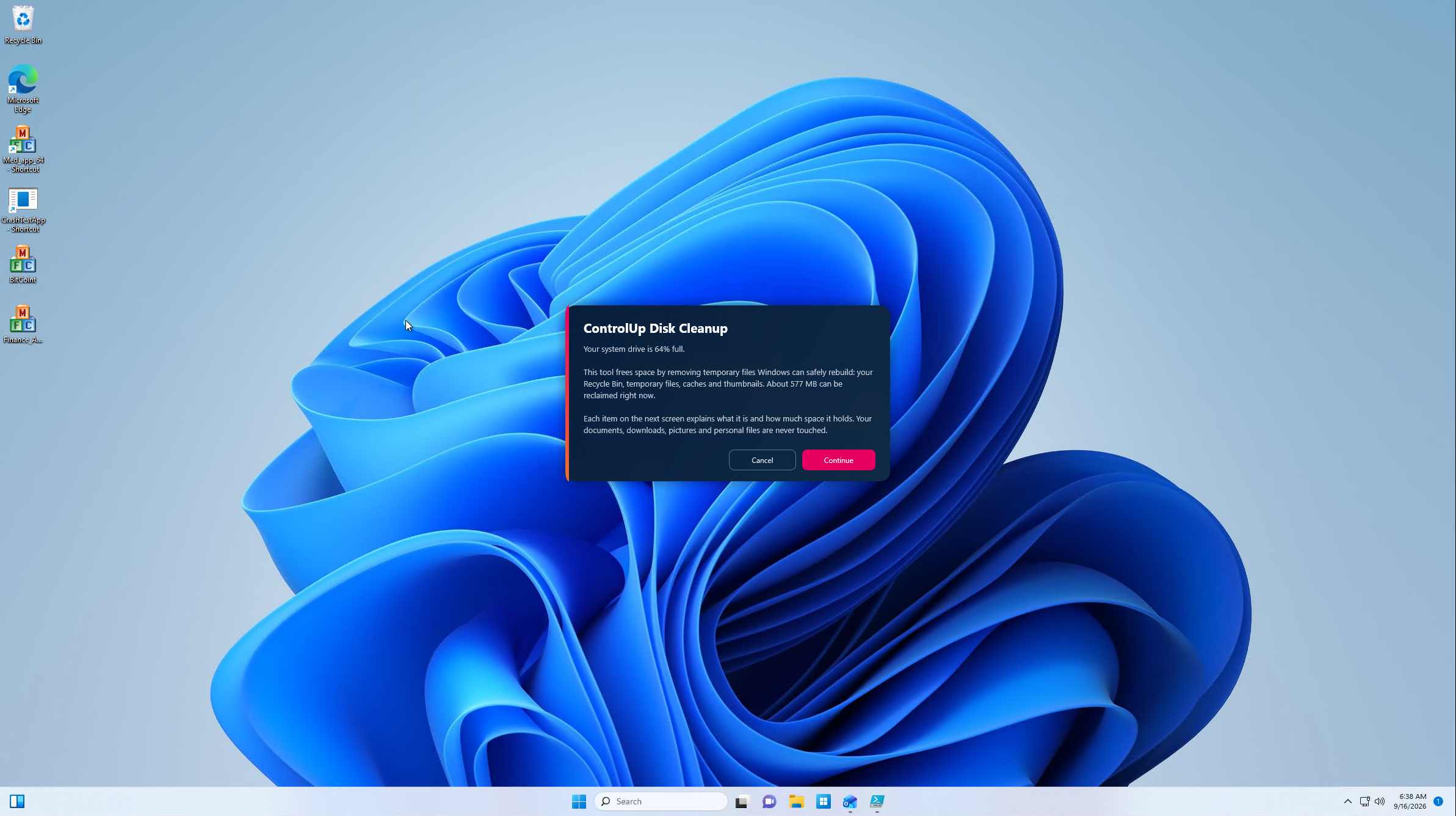
The moment the threshold trips, the user sees a plain-language explanation of what’s happening and what’s about to be offered. Personal files are called out up front as off-limits.

Clicking through shows exactly what would be removed and how much space each item holds, recommended items are pre-checked, optional ones are left to the user’s judgment.

Once the user confirms, the cleanup runs immediately and reports back exactly what was freed. No ticket, no wait, no IT involvement required.
Why this is worth setting up
Every hour IT spends manually diagnosing “my drive is full” is an hour spent on something a well-placed prompt could have resolved without a ticket ever being filed. Whether you get there through the prepackaged cleanup dialog or the broader Self-Service approach, the underlying shift is the same: catch the problem while it’s still just an inconvenience, put the fix in front of the person who can act on it fastest, and let IT spend its time on the issues that actually need a specialist.
