
ControlUp's Remote Monitoring and Management (RMM) introduces File Browser and Registry Editor as critical features, enabling silent, real-time, and non-disruptive IT remediation that resonates strongly with customers over more conspicuous capabilities.
The File Browser provides remote, live access to a device's file system, allowing IT admins to manage files and folders (create, edit, transfer) without interrupting the end-user.
The Registry Editor offers remote, live capabilities to modify Windows Registry keys and values, facilitating precise and secure resolution of common system issues.
These tools shift IT troubleshooting from asynchronous, disruptive methods to immediate, silent actions, significantly enhancing day-to-day IT support efficiency and user experience.
When we launched Remote Monitoring and Management (RMM) earlier this year, we expected IT teams to gravitate toward the flashier features: the live network topology maps, the process-level telemetry, the real-time storage monitoring. Instead, customer conversations keep circling back to two tools that sound almost mundane on paper: File Browser and Registry Editor.
There’s a simple reason for that. Every IT admin has lived through the same scenario: a user reports a problem, and the fix requires poking at a file or a registry key. Historically, that meant one of two options, both bad. You could write a script and wait for the next polling cycle, or you could start a remote-control session and interrupt whatever the user was doing. File Browser and Registry Editor eliminate that tradeoff. They let you go straight to the file system or the registry, make the change, and get out, all without the user ever knowing you were there.
Here’s what each one actually does, and why customers keep telling us these are the features they reach for most.
File Browser: Windows Explorer, without the interruption
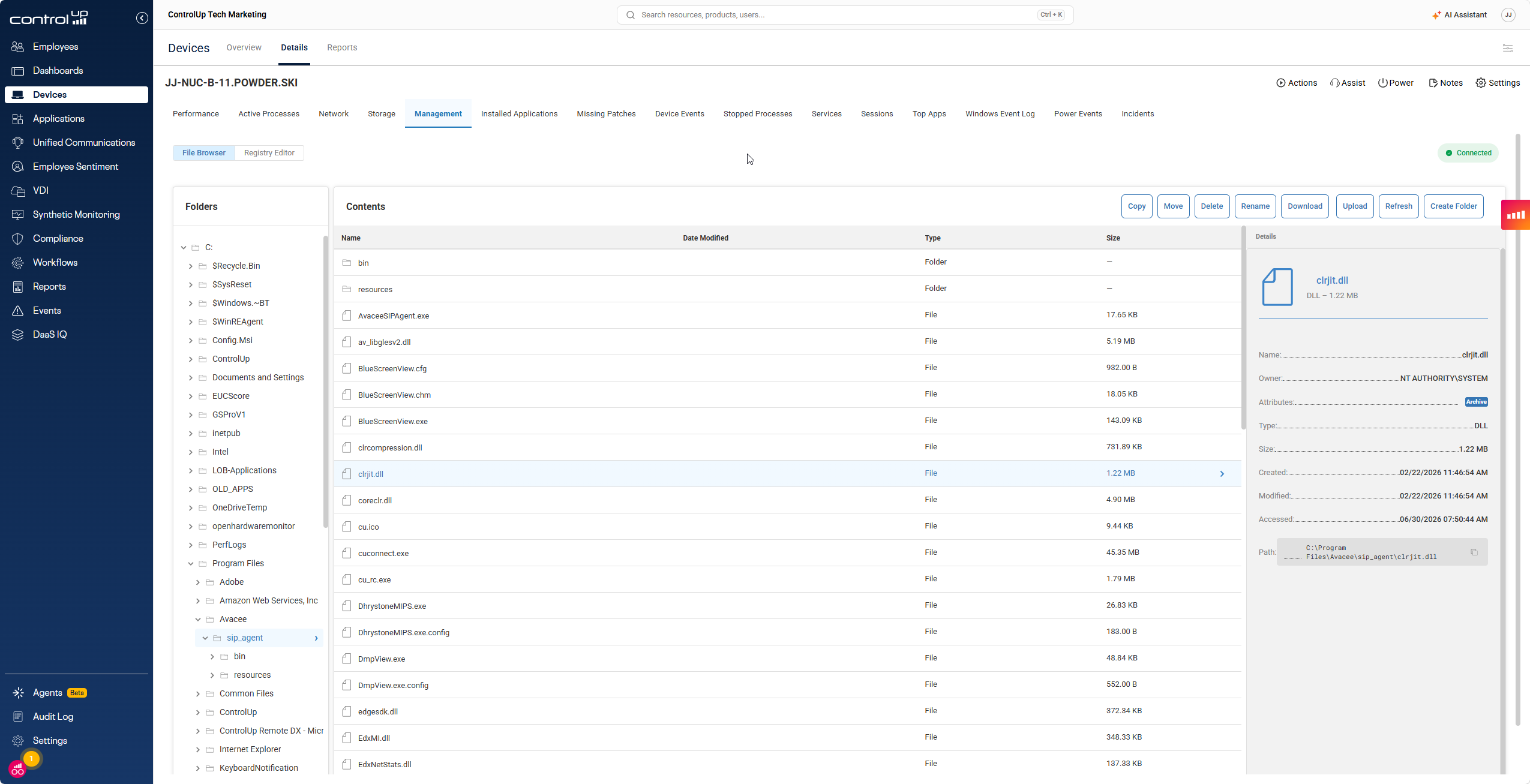
File Browser is exactly what it sounds like: a remote, live view of a device’s file system. You drill into a device from the Devices view, navigate to Management > File Browser, and you get a familiar two-pane layout. The left side shows the device’s local drives and folder tree. The right side shows the contents of whatever folder you’ve selected, including hidden folders, with full file details like size, and created, modified, and accessed timestamps.
From there, you can do what you’d expect from Explorer itself:
- Navigate the full folder structure of local drives
- Create, rename, move, copy, and delete files and folders
- Upload files from your machine to the device, or download files from the device to your machine, up to 250MB per file
The device has to be online, and only one ControlUp user can be in the File Browser for a given device at a time, which keeps concurrent changes from colliding.
One detail worth knowing if you’re setting up roles: the default Admin role only grants view access to the folder structure. Permissions to actually modify files or open one to view its contents have to be added deliberately to a custom role. That’s by design. File contents can be sensitive, so we didn’t want to write and read-content access bundled into a role by default.
Why customers care: this is the tool that turns a 20-minute remote session into a 30-second fix. Missing config file? Corrupted cache folder? A log file you need to pull for a support ticket? You get it done without ever putting a user’s screen under someone else’s control.
Registry Editor: RegEdit, minus the screen share
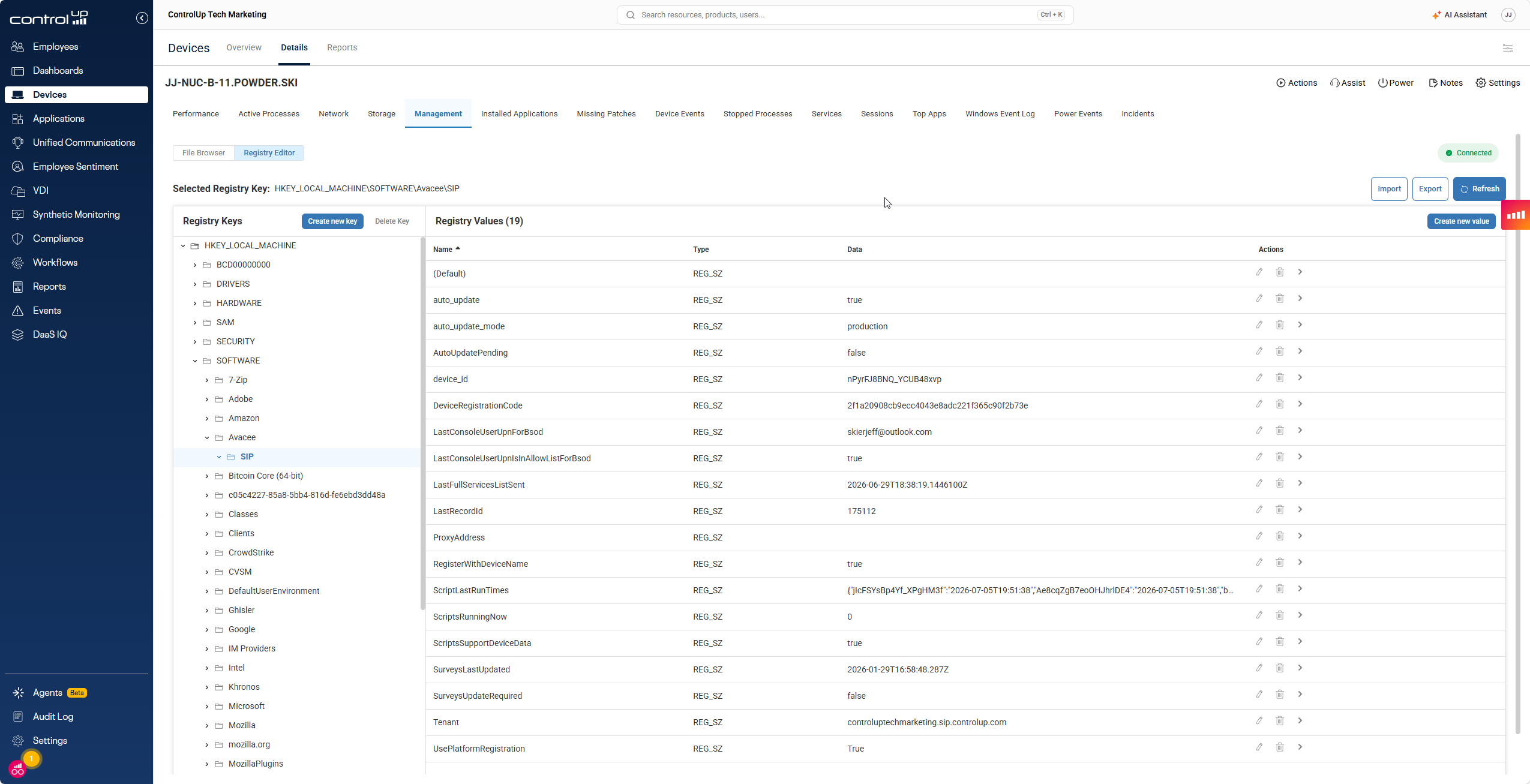
Registry Editor gives you the same core functionality as the Windows Registry Editor but driven remotely from the ControlUp console. You get full browse, create, modify, and delete capability for keys and values, plus import and export of .reg files.
A few things make this more than a simple clone:
- Full CRUD on keys and values. Create a key, rename it, delete it (recursively or not), and manage the values inside it. All the standard registry value types are supported: strings, expandable strings, binary, DWORD, QWORD, and multi-string.
- Export and import of .reg files. Export a key and its subkeys to a .reg file before you touch anything, so you always have a rollback path. Import applies a .reg file the same way double-clicking one would on the device itself, and because .reg files carry absolute paths, the import doesn’t depend on which key you happen to be viewing at the time.
- Permissions live under Device Permissions > Remote Management > Management > Registry, and unlike File Browser, registry permissions are included in the default Admin role.
The device needs to be online, and, like File Browser, access is limited to one ControlUp user per device at a time.
Why customers care: registry fixes are some of the most common remediation steps in IT, and they’re also some of the riskiest to hand off or script blindly. Being able to browse to the exact key, see the current value, make a precise change, and export a backup first, all in one live session, removes a lot of the guesswork and a lot of the risk.
The Bigger Pattern: Remediation Without Disruption
Both tools point to the same underlying shift. ControlUp’s RMM moves IT from asynchronous, delayed troubleshooting (write a script, wait for the next data upload) to live, in-the-moment action. File Browser and Registry Editor are the “hands-on” half of that shift. You’re not just watching telemetry stream in real time, you’re able to act on what you see immediately, silently, and precisely.
That combination, real-time visibility plus non-disruptive remediation, is exactly what’s resonating with customers. It’s not the most dramatic feature in the release. It’s the one that shows up in the day-to-day grind of IT support, which is exactly where most of the actual work happens.
Want to see File Browser and Registry Editor in action?
Request a demo or reach out to your ControlUp account team to get RMM enabled in your environment.
